Secure Mobile Devices
Building a dedicated, hardened phone for activism with GrapheneOS.
More activists are being targeted, arrested, and having their electronic devices subpoenaed. If you're communicating on a standard Apple or Google Android device, it can be a trivial process for law enforcement to break into your phone and hoover up all the data inside. Encrypted apps like Signal help, but no amount of encryption protects you once an adversary has your physical device. The most reliable mitigation is a dedicated secure device used strictly for your activism work.
Section 1: How GrapheneOS Protects You
Have two phones: one for everyday use, and one used strictly for activism and secure communication. This guide walks through building that second device.
GrapheneOS is an open-source phone operating system built for privacy and security first. A more thorough, technical explanation is available on the GrapheneOS features page.
How it protects you
- It guards against unknown threats, not just known ones. Most phones only get protected from a security hole after the manufacturer learns about it and ships a fix. GrapheneOS is built to make attacks hard even when the flaw being exploited is brand-new and nobody has a patch for it yet.
- It turns off features you aren't using. Every active feature is a potential way in. GrapheneOS disables things like Bluetooth, NFC, and other radios by default until you choose to use them, shrinking the number of doors an attacker can try.
- It locks down the charging port when the phone is locked. By default a locked GrapheneOS phone treats its USB-C port as charge-only and cuts the data connection — blocking the forensic tools that break in by plugging into it.
- It makes the most common type of hack much harder. The single most common way phones get hacked is a class of memory bugs. GrapheneOS rebuilds the core memory-handling parts of the system to detect and block these attacks, where commercial systems generally accept weaker protections for the sake of speed.
- Google's apps and services aren't baked in. On a normal Android phone, Google services run deep inside the system with wide-reaching access. GrapheneOS ships without them. You can install Google Play if you want it, but it runs as an ordinary app with no special powers, walled off from everything else.
Protecting your data if the phone is lost, stolen, or seized
- A “duress” PIN can wipe the phone instantly. Set up a secret second PIN that, when entered, permanently erases the device data.
- It reboots itself after sitting locked. Data is far harder to extract from a phone in its just-powered-on state, so GrapheneOS automatically restarts a locked phone after a set time (18 hours by default) to return it to that more secure state.
- It actively wipes sensitive data out of memory. Your passcode and encryption keys are cleared from memory as soon as they're no longer needed, rather than lingering where an attacker might grab them.
- A stronger lock screen. It supports much longer passwords, can scramble the PIN pad so someone watching can't learn your code, limits fingerprint attempts to 5, and can require both a fingerprint and a PIN to unlock.
Other notable protections
- Faster, more complete security updates. GrapheneOS often ships important fixes weeks or months ahead of the stock phone software, and patches things the original manufacturer missed.
- A hardened web browser. Its built-in browser, Vanadium, is a security-reinforced version of Chrome that also strips out features commonly used to track you across websites.
- It plugs “VPN leaks.” If you use a VPN for privacy, GrapheneOS does a much more thorough job of ensuring your real internet traffic can't accidentally slip out around it.
- It can prove it hasn't been tampered with. A built-in tool uses the phone's hardware to verify the system software is authentic and unmodified, so you can detect a compromised device.
Section 2: Getting the Right Device
Only Google Pixel devices have the security features needed to run GrapheneOS with minimal risk. Although older Pixel devices are supported, only the Pixel 8 series and newer have the hardened security features GrapheneOS recommends — and they get the longest official support window (7 years from release). It doesn't have to be brand new: a second-hand Pixel 8 works great.
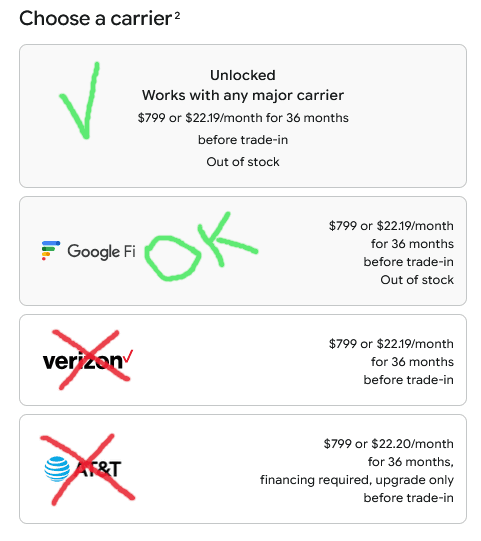
Avoid “carrier” versions (AT&T, Verizon — Google Fi is fine). Buy the unlocked model for maximum security.
Section 3: Installing GrapheneOS
GrapheneOS can be installed from its website or the command line. We strongly recommend the web installer unless you're an especially technical user. The official site has thorough instructions, but a few prerequisites are worth calling out.
Prerequisites
- A computer with at least 2 GB of free memory and 32 GB of free storage. Windows, macOS, and Linux are all supported. (Hardened systems like QubesOS also work, though they're not officially supported — see page 7 of this guide.)
- A supported browser. Firefox will not work with the web-based installer.
- A USB cable to connect the device to the computer — ideally the standards-compliant USB-C cable that shipped with the phone.
- Connect directly to a rear port on a desktop or a port on a laptop. Avoid USB hubs and front-panel ports.
Bad cables are the #1 cause of install problems. Many widely distributed USB cables and hubs are broken, and many common USB-C cables are “power-only” and can't transfer data. Use a reliable USB-C data-enabled cable — search for key words like “Data transfer” when purchasing.
Section 4: Installing Apps
GrapheneOS comes with a small set of basic apps, but you'll want more for secure browsing and communication. From the built-in GrapheneOS app store you can install two additional app stores — Accrescent and Sandboxed Google Play. (Google Play still requires a Google account, but you can create one with throwaway info.)
Accrescent
Install Accrescent from the GrapheneOS app store, then download what you need from its curated selection of secure apps. Later in this guide we go over the secure messaging app Molly, which is available through Accrescent.
Sandboxed Google Play
- Create a separate GrapheneOS Profile to download and use Google Play and apps from that store. These apps may include more tracking that you want to isolate from your main profile. More info on user profiles is in section 10.
- Disable the advertising ID once installed and signed in: Settings → Apps → Sandboxed Google Play → Google Settings → Ads → Delete advertising ID.
- Automatic updates are on by default: Google Play Store → Settings → Network preferences → Auto-update apps.
- Keep notifications on for the Google Play Store and Google Play Services (required for auto-updates): Settings → Apps → Google Play Store / Google Play Services → Notifications. Accept update prompts when they appear.
F-Droid
To follow the VOIP setup below, install F-Droid, a free and open-source app repository. Open Vanadium on your GrapheneOS device, go to f-droid.org, and tap install.
Section 5: Setting Up a VOIP Number
Any traditional wireless carrier requires a SIM card. To connect, your phone reaches its nearest cell tower and routes all calls and texts through it — exposing your SIM identifier (IMSI), hardware identifier (IMEI), and approximate location. That makes you easy to identify, so on a secure organizing device we avoid SIM cards and traditional carriers entirely.
The workaround is a VOIP (Voice over Internet Protocol) number. Unlike traditional numbers, VOIP calls and texts travel over the internet rather than cellular radio infrastructure. The number is just an endpoint online, with no tie to your device, SIM, or physical location.
Many services that require a phone number block VOIP numbers (they're common in fraud), but critically, Signal and Molly accept them. That lets you call and text securely through Signal using a VOIP number.
Recommended services
- JMP / Cheogram — Our preferred option (used throughout this guide).
- MySudo — Acquire multiple numbers easily, but there are data caps
- VOIP.ms — Pay-as-you-go VOIP service.
The rest of this guide uses JMP, chosen for its flexible payment options and flat $5/month fee (after a $20 activation).
Section 6: Payment Methods for JMP
Truly anonymous payments are difficult. Keep the goal in mind: privacy for the CONTENTof your activism communications. It's less important to obscure simply that you have a VOIP subscription, or even what your number is. Even if the purchase is tied to your real identity, GrapheneOS plus Signal/Molly keep the contents of your chats hidden. Signal, even under subpoena, can only reveal your VOIP number, the time you signed up, and your last connection time.
JMP accepts several payment methods, some of which can sidestep KYC(“Know Your Customer”) — the identity verification that links purchases to your real-world identity throughout the financial system. Pick the tier that matches your risk profile; the more private options take more time, money, and effort.
KYC-Verified — Fine for most activists
- Standard credit card issued in your real name.
- Bitcoin or Bitcoin Cash purchased on a mainstream, identity-verified exchange.
Semi-Private — An extra layer
Privacy.com cards are an exception to the usual prepaid-card failures — purchases show up on your statement as “privacy.com” rather than the real vendor. You still verify your identity with Privacy.com, so law enforcement could compel them to hand it over, but it raises the effort required to trace the purchase.
Completely Anonymous — For high-risk action
- Mail cash or a check to JMP. With a careful return address, the number can't be attributed to you.
- Peer-to-peer Bitcoin or Bitcoin Cash bought outside a KYC exchange. This is a difficult process in itself and beyond the scope of this guide.
Section 7: JMP Setup with Cheogram
JMP identifies users with Jabber IDs (JIDs), which look like email addresses. No single entity controls the network, so you can get a JID from several services — the easiest for us is the chat app Cheogram. We'll use Cheogram only to create a Jabber ID and buy the JMP number; that number then registers a new Signal or Molly account.
First, install Cheogram from F-Droid on your GrapheneOS device.
Open Cheogram and follow the steps to create a new Jabber ID. Then use Cheogram or the JMP.chat website to purchase a phone number and VOIP plan with your new Jabber ID.
One-time activation: after you buy your number, it must receive one text message from a real person before it's available for general use.
Section 8: Molly & Signal
The final step is registering an encrypted messaging account with your new VOIP number. Signal works fine, but a more secure option is Molly, a security-hardened fork of Signal. The two use the same network and are fully compatible — you can message Signal users from Molly and vice-versa.
The key difference: Signal's message database is protected only by your device lock, while Molly adds a separate passphrase — so an adversary who seizes an unlocked phone still can't automatically read your message history.
Install Molly from the Accrescent app store included with GrapheneOS, then sign up with your newly purchased VOIP number.
Section 9: Recommended GrapheneOS Settings
Duress PIN & Password
If you fear your device may be captured, a Duress PIN triggers an immediate factory reset, wiping everything on it.
Set it at Settings → Security & privacy → Device unlock → Duress password. Entering this PIN in place of your normal one wipes all data, so make it clearly different from your regular PIN and use it only when under extreme duress.
Auto-Reboot Timer
A phone is most vulnerable in the After First Unlock (AFU) state: once it's been unlocked at least once since powering on, the encryption keys sit in memory where sophisticated attackers can scrape them. Before that first unlock — the Before First Unlock (BFU)state — it's far harder to break into.
The Auto-Reboot Timer reboots an idle phone back into the BFU state, so even a seized device only gives an attacker a limited window. It defaults to 18 hours; adjust it at Settings → Security & privacy → Exploit protection → Auto-reboot.
Section 10: Other Important Considerations
VPNs
A VPN (Virtual Private Network) adds an extra layer of privacy and security. It encrypts your internet traffic and routes it through a server, masking your IP address and location. Choose a reputable VPN provider that does not log user activity and has strong encryption standards. We recommend Mullvad (Available via F-droid) or IVPN (Downloadable through the accrescent app store, or here on F-droid). Avoid free VPNs, as they often compromise your privacy by logging and selling your data.
GrapheneOS User Profiles
GrapheneOS supports multiple user profiles, allowing you to compartmentalize your activities and data. Each profile has its own apps, settings, and storage, providing an extra layer of security and privacy.
On a new GrapheneOS phone the “Owner” profile will be the only one. To create a new profile, go to Settings → System → Users → Add user. You can switch between profiles from the lock screen or the quick settings menu. For extra security, use separate profiles for different activities. This guide recommends using the Owner profile to install apps, a second profile to use the apps for your activism work, and a third profile for apps from Google Play (if you choose to install it).
Source: AnarSec — GrapheneOS for Anarchists
Your Chat is as Secure as it's Weakest Device
Even with a hardened device, your security is only as strong as the people you communicate with. If you send messages to someone using a compromised or non-hardened device, those messages can still be exposed. Refer your contacts to this guide so they can set up secure devices and apps for your privacy.
Per-app security toggles
GrapheneOS allows you to fine-tune the permissions for each app, controlling access to network, sensors, and storage. This helps minimize the potential attack surface of your device. You can adjust these settings in Settings → Apps → [App Name] → Permissions.