Digital Security Toolkit
A practical guide for non-technical people doing civil resistance work.
This guide covers secure communications, device security, operational protocols, and more. It is designed to be accessible for people without technical backgrounds, while still providing actionable advice for improving your digital security in high-risk situations.
Section 1: How You're Tracked
What metadata is and why it matters more than message content
- Your messages might be encrypted, but the data about your messages — who you talked to, when, how often, from where, and for how long — paints a detailed picture of your life, relationships, and activities.
- Governments have acknowledged that metadata alone is sufficient to build intelligence profiles. You don't need to read a message to know that ten people all contacted the same person before a protest — that person is now identified as a coordinator.
What mainstream messaging apps actually hand over to law enforcement
A leaked FBI training document revealed that with legal process, the FBI can obtain varying levels of data from major apps — ranging from minimal information (Signal) to subscriber info and metadata from several services, and even limited stored message content from iMessage and WhatsApp.
Source: Just Security — What Information the FBI Can Obtain from Encrypted Messaging Apps
The iCloud / Google backup trap
- If an iMessage user has iCloud backups enabled, a copy of the encryption key is backed up with the messages and can be disclosed as part of a warrant return — effectively bypassing end-to-end encryption entirely.
- The same applies to WhatsApp backups stored in Google Drive or iCloud. Encrypted messaging means nothing if unencrypted backups exist.
Action: Disable cloud backups for all sensitive messaging apps immediately.
WhatsApp specifics
- With a search warrant, WhatsApp provides address book contacts and WhatsApp users who have the target in their contacts.
- A pen register provides source and destination of each message, updated every 15 minutes.
- WhatsApp is owned by Meta, whose business model depends on data collection.
Telegram specifics
- Following the arrest of CEO Pavel Durov in France in August 2024, Telegram dramatically changed its privacy policy. It now cooperates with law enforcement on any criminal investigation — not just terrorism.
- In 2024, Telegram fulfilled 900 US government requests, sharing phone numbers and IP addresses of 2,253 users — a massive increase from the 14 requests and 108 users disclosed earlier that year.
- Critical: Telegram is NOT end-to-end encrypted by default. Only “secret chats” are encrypted. Regular chats are stored on Telegram's servers in readable form.
Source: BleepingComputer — Telegram Hands Over Data
Source: TechCrunch — Telegram Reports Spike in Sharing User Data
Your phone number is an identity anchor
- Every phone carrier maintains records of your phone number, call history, and text messages. They also identify your location via cell towers.
- For greater security, consider using a secure device running GrapheneOS, and using a VOIP number on an unlocked device. Our detailed guide here can help you set it up!
Social graph analysis
- Even if individual messages can't be read, who communicates with whom — and when — reveals organizational structures. If ten people in a group all message the same person frequently, that person is identified as a coordinator without reading a single message.
Section 2: Secure Communication Tools
Signal/Molly — The accessible gold standards
Signal end-to-end encrypts both content and metadata by default. When legally compelled to provide data, Signal can only produce the date, phone number, and time a user registered and the last date of connectivity — nothing else, because nothing else exists on their servers. Molly is a security-first fork of Signal that offers even greater privacy protections. Read more about secure mobile messaging with Molly in this guide.
- Enable disappearing messages for all conversations
- Disable cloud backups of Signal data
- Verify safety numbers with contacts in person when possible
- Use registration lock to prevent someone hijacking your number
- Weakness: Requires a phone number to register. Mitigation: register with a prepaid number not linked to your identity.
Briar — Purpose-built for activists and journalists
Briar operates over Tor when internet is available, and falls back to Wi-Fi and Bluetooth when it isn't. It is not legally incorporated in any jurisdiction and doesn't need a central server to sync messages. No phone number, no email required.
- The most important tool if internet shutdowns are possible. Works offline via Bluetooth and Wi-Fi Direct.
- Contacts must be added in person or via a secure link
- Limitation: Android only — no iOS version currently exists
SimpleX Chat — Maximum anonymity
SimpleX requires no phone number, username, or account. Chats are started through private invitation links or QR codes, meaning no central directory of users exists. It is impossible to correlate activity between accounts even if servers are compromised.
- Available on Android, iOS, and desktop
- Growing user base but still niche
Session — No identity required
Session is a Signal fork that removes the phone number requirement entirely. It uses a decentralized network of nodes for message relay. No phone number, no email, no account.
- Cross-platform (Android, iOS, desktop)
- Has reported reliability issues — less polished than Signal for everyday use
ProtonMail — Encrypted email
Encrypted email based in Switzerland with strong legal protections. End-to-end encrypted between ProtonMail users; encrypted at rest for external email. Free tier available.
- Not a messaging replacement — use for email specifically
- Use with Tor Browser for maximum anonymity
- Don't link it to your real identity if used for sensitive purposes
Do Not Use for sensitive communications
- SMS/MMS — completely unencrypted, fully accessible to carriers and law enforcement
- WhatsApp — Meta-owned, metadata rich, cloud backup trap
- Telegram regular chats — not encrypted, server-stored, now cooperating broadly with law enforcement
- Facebook Messenger, Instagram DMs — Meta-owned, fully accessible
- Discord, Slack — not designed for privacy, data retained and accessible
- Email between non-encrypted providers — transmitted and stored in plaintext
Comparison references
Section 3: Passwords, Authentication, and Account Security
Why passwords matter
A compromised account exposes not just your data but the data of everyone you communicate with. One weak password in a group can compromise the entire network.
Password manager basics
Use a password manager to generate and store unique, long passwords for every account.
- Recommended: KeePassXC (offline, open-source, cross-platform) or Bitwarden (cloud-synced, open-source, free tier)
- Your master password is the only password you need to memorize — make it a long passphrase (4–6 random words)
- Never reuse passwords across sites
- Never use personal information in passwords (birthdays, names, addresses)
Two-factor authentication (2FA)
Essential for every account that supports it. But the type of 2FA matters enormously.
- SMS-based 2FA is dangerous. SIM swapping attacks allow an adversary to intercept your SMS codes by convincing your carrier to transfer your number. In an authoritarian context, the carrier may simply comply with a government request.
- Authenticator apps are meaningfully better — they generate time-based codes on your device with no carrier involvement. Recommended: Aegis (Android), 2FAS (iOS).
- Hardware security keys are the strongest option — a physical device that must be present to authenticate. Cannot be phished, SIM-swapped, or intercepted remotely. Recommended: YubiKey, Nitrokey.
Account recovery is a vulnerability
- Recovery emails, security questions, and backup phone numbers are all attack vectors.
- An adversary who can answer your security questions or access your recovery email can take over your account without your password.
- Use strong, unique answers to security questions (or random strings stored in your password manager).
Email compartmentalization
- Use separate email addresses for different purposes — personal, work, activist.
- ProtonMail or Tutanota for sensitive contexts.
- Alias services like SimpleLogin or AnonAddy create disposable forwarding addresses that don't reveal your real email.
Section 4: Understanding Your Internet Connection
What your ISP sees with no protection
- Every website you visit (domain name), when you visited, how long you stayed, how much data you transferred, and your physical address tied to your account.
- In many jurisdictions, ISPs are required to retain this data for months or years.
- In an authoritarian context, assume the ISP is an extension of the surveillance apparatus.
What your ISP sees when you use a VPN
- Your ISP sees that you connected to a VPN server and how much data flowed, but cannot see what websites you visited or the content of your traffic.
- However, the VPN provider now sees everything your ISP used to see. You've moved the trust — not eliminated it.
- Choose a VPN with a verified no-logs policy: Mullvad VPN (accepts cash payment by mail — no identity required) or ProtonVPN.
- A VPN in the same jurisdiction as your adversary provides limited protection — a domestic VPN provider can be compelled by the same government.
- VPNs are useful for bypassing censorship and preventing ISP-level surveillance, not for anonymity against a motivated adversary.
What your ISP sees when you use Tor
- Your ISP sees that you connected to a Tor entry node (or bridge) and the volume of data, but cannot see your destination or content.
- No single entity in the Tor network sees the complete picture — the entry node knows who you are but not where you're going; the exit node knows where you're going but not who you are.
- Tor is significantly slower than a VPN but provides much stronger anonymity.
- In some jurisdictions, Tor usage itself is flagged as suspicious — bridges and pluggable transports (see Section 5) mitigate this.
DNS leaks
- Even with a VPN, your DNS queries (the translations of website names to IP addresses) can leak to your ISP if not configured correctly.
- Use encrypted DNS (DNS-over-HTTPS or DNS-over-TLS) and verify your VPN isn't leaking DNS.
- Test tool: dnsleaktest.com
Public Wi-Fi
- Useful for disconnecting activity from your home IP address, but the network operator sees the same traffic your ISP would.
- Always use Tor or a VPN on public Wi-Fi.
- Never access sensitive accounts on untrusted networks without encryption.
Section 5: Tor Basics
What Tor is
A free network and browser that anonymizes your internet traffic by routing it through three volunteer-run relays, each encrypting a layer so no single relay knows both who you are and what you're accessing.
How to get it
- Download Tor Browser from torproject.org — and verify the download (the site provides instructions).
- Do NOT use a modified version from any other source.
When to use it
Any time you need to access the internet without your activity being attributable to you — researching sensitive topics, communicating with journalists, accessing blocked content, or simply browsing without surveillance.
Bridges and pluggable transports
In countries where Tor is blocked, bridges are unlisted entry nodes that make it harder for censors to identify and block your Tor connection. Pluggable transports disguise Tor traffic:
- obfs4 — disguises Tor traffic to look like random noise
- Snowflake — disguises Tor traffic as video call traffic
These are configured within Tor Browser settings. Bridge addresses can be obtained at bridges.torproject.org, or via email to bridges@torproject.org.
Critical pre-planning step: In extreme censorship environments, get bridge addresses out-of-band (written on paper, memorized, shared in person) before internet is restricted.
Common mistakes that break Tor anonymity
- Logging into personal accounts (Gmail, Facebook, etc.) while using Tor — instantly links your identity to your Tor session
- Maximizing the Tor Browser window — window size can be used as a fingerprint.
- Downloading and opening files while connected to Tor — documents can contain resources that connect outside Tor, revealing your IP
- Using Tor and non-Tor browsers simultaneously on the same machine for related activities
- Installing browser extensions — they alter your browser fingerprint and can leak data
Source: Tor Project — How Tor Browser protects you against browser fingerprinting
What Tor doesn't protect against
Malware on your device, keyloggers, compromised endpoints, or an adversary who controls both your entry and exit nodes (a “correlation attack”). Tor protects your network traffic, not your device.
Tails OS
For the highest-risk situations, use Tails — a complete operating system that boots from a USB drive, routes all traffic through Tor, and leaves no trace on the computer. If Tor Browser is a locked door, Tails is a sealed room.
Section 6: Device Security and Operating Systems
Your phone is the highest-risk device you carry
It has more sensors, more radios, more always-on connections, and less user control than any other device in your life.
Most impactful step: Use a dedicated phone only for sensitive communications, with no SIM card, no personal accounts, and no link to your real identity.
GrapheneOS — The gold standard for Android
GrapheneOS runs on Google Pixel hardware, strips out Google services, and hardens the OS against exploitation. A web-based installer makes setup straightforward.
- Supports auto-wipe after failed unlock attempts
- Supports a duress PIN that wipes the device when entered
- See our detailed guide to setting up a secure phone with GrapheneOS here: Secure Mobile Devices
If you can't run GrapheneOS
A stock iPhone with these settings provides meaningfully better baseline security than stock Android:
- Disable Siri
- Disable iCloud backup for sensitive apps
- Enable Advanced Data Protection for iCloud
- Disable location services for all apps that don't strictly need it
- Enable Lockdown Mode (built into iOS for high-risk users)
- Use a strong alphanumeric passcode; disable Face ID / Touch ID
For computers
Linux provides meaningfully more control and transparency than Windows or macOS.
- Linux Mint — the most familiar transition from Windows
- Fedora — stronger default security with SELinux
- Tails — for highest-risk situations (see Section 5)
- On all of the above: enable full disk encryption during installation
Disable telemetry on whatever you use
- Windows: Settings → Privacy → turn off everything under Diagnostics & Feedback, Activity History, Speech, Inking. Consider O&O ShutUp10 for comprehensive disabling.
- macOS: System Settings → Privacy & Security → Analytics & Improvements → turn off all sharing. Disable Siri data sharing.
- Android: Settings → Privacy → Usage & Diagnostics → disable. Disable Google activity tracking.
- iOS: Settings → Privacy & Security → Analytics & Improvements → turn off all. Turn off personalized ads.
- Browsers: Firefox with Enhanced Tracking Protection set to Strict is the recommended browser. Install uBlock Origin.
Section 7: Social Media Best Practices
Many of us have at least one form of social media, if not some combination of various applications. While the most straight-forward method of protecting yourself would be to delete them in their entirety, that is less practical for some rather than others. The following section goes through the most popular social media applications and provides guidance on how to harden your privacy settings to the maximum extent possible.
Source: How to Protect Your Privacy on Social Media (General guidance)
View Instagram privacy settings
Account Privacy settings
- Your account is on public by default
- This allows anyone to view, follow, and share your account, stories, posts, etc.
- Navigate to Settings → Privacy → Private Account and toggle switch to “Private”
Story Privacy Controls
- You can hide stories from Specific Users
- Settings → Privacy → Story → Hide Story From
- You can also configure a specific group of individuals who can view particular shared content via the “Close Friends List”
Activity Status Management
- Adjust visibility of your online status
- Settings → Privacy → Activity Status (Toggle Show Activity Status “off”)
Content Privacy
- Photo Tagging Controls
- “Manual Approval”
- Enable via Settings → Privacy → Tags → Manually Approve Tags
- Hide Tagged Posts
- Profile → Tags → Tag Options → Remove Tag
- Limit Tagging Permissions
- Recommend disabling tagging by others entirely
- Archive Features
- Posts/Stories
- Archive Content without deletion via Profile → ⋮ → Archive
- Control Archive Visibility under “Story Settings”
- Posts/Stories
- “Manual Approval”
Data Management
- Download your data
- You can request a copy via Settings → Security → Download Data
- Select data types
- Receive Zip file via email
- Third Party Access
- Revoke Permissions
- Mobile: Settings → Security → Apps and Websites
- Desktop: Settings → Authorized Apps
- Revoke Permissions
- Ad Preferences
- Opt out of Targeted Ads: Settings → Ads → Ad Preferences → Disable Personalized Ads
- This is especially important given the Federal government buying American's data from commercial data brokers.
- Opt out of Targeted Ads: Settings → Ads → Ad Preferences → Disable Personalized Ads
- Cross-App Tracking
- Off-Meta Activity: Settings → Accounts Center → Your Activity Off-Meta
- Browser Tracking: Avoid in-app browsers; use Duckduckgo/Tor browsers
Source: My Privacy Blog “Instagram Privacy Deep Dive”
View Facebook privacy settings
Clear Data Cache & Prevent Future Tracking Data Collection
- Menu (bottom right) → Settings & Privacy → Settings → Accounts Center (Top) → Your Information & permissions → your activity off meta technologies
- Hit clear previous activity and tap: Manage Future Activity → Disconnect Future Activity
- Both clearing previous activity & disconnecting future activity are necessary to clear past data & prevent future data collection
Location Data
- Facebook continuously collects data about your location while using the mobile app. This is done in several ways, but primarily accomplished via your device's GPS (most accurate location data collection) to your network connection (Approximate location, less accurate)
- iPhone Users:
- Phone's Settings → Privacy & Security → Location Services → Facebook (Best practice would be “never”; practically “While Using App” is acceptable but compromises location data while in use.)
- Android Device
- Phone Settings → Location → App Permissions → Facebook → Allow “Only While Using the App” or “Deny”
- Note that these instructions will vary slightly based on your phone; location settings may be under a permissions menu on older devices.
Limit Data Collection by Facebook's Partners
- Facebook's multi-log in feature which allows users to easily sign into other websites and applications using their Facebook account provides third parties/outside services on-going access to details about your Facebook.
- Disabling this feature and creating unique log-ins for third-party websites will resolve this issue
- Facebook Menu (bottom right) → Settings & Privacy → Settings → Under Your Activity (Tap Apps and Websites) → Login → Select App (Click box next to App's name) → Remove
Two Factor Authentication
- A basic step that many people are already familiar with, but often don't bother implementing is utilizing a two-factor authentication (2FA). In a 2FA system the company will send you a verification code, usually via SMS, to confirm your identity when you log in from an unverified location, device, or browser.
- Facebook App
- Facebook Menu (Bottom Right) → Settings & Privacy → Settings → Accounts Center → Password and Security → Two Factor Authentication → Complete the listed process
Profile Search Settings
- Your social media presence (who you follow, liked pages, comments, etc) can all be used to build a profile of you, your family, and your interests. An initial step to make this process harder for an adversary is to make your profile difficult to find in the first place.
- In Facebook App: Menu (Bottom Right) → Settings & Privacy → Settings → Under Audience and Visibility (Tap How People Find and Contact You) → Do You Want Search Engines Outside of Facebook to Link to Your Profile? → Turn off
Limit Views of Photos & Posts
- In Facebook App: Menu (Bottom Right) → Settings & Privacy → Default Audience Settings → Select “Friends”
Adjust Targeted Ads
- In Facebook App (Bottom Right) → Settings & Privacy → Accounts Center → Ad Preferences → Manage Info → Go through each setting and restrict privacy to the maximum extent
Meta Cookies & Containers
- Meta's data collection does not stop when you leave the website, especially given that millions of websites use Meta's hidden tracking “pixels” that hide the fact you are being monitored.
- While the app is limited in allowing you to control the collection of data via these methods, there are steps you can take to mitigate this.
- Using an ad-blocking extension (Will dive deeper into this later) such as uBlock Origin, Disconnect, or Privacy Badger on your browser can obfuscate your activity from trackers.
- Additionally, using the Mozilla Foundation's “container” feature
Limit Who Can Message You
- In Facebook App: Menu (Bottom right) → Settings & Privacy → Settings → Audience and Visibility (tap How People Find and Contact You) → Message Requests (Adjust to your privacy preference)
Privacy Checkup
- Use Facebook's Privacy Checkup Tool to review your privacy settings and changes to ensure that you are addressing the areas of exposure/concern
Source: Facebook Privacy Settings You Should Change Right Now
Source: The Complete Guide to Facebook Privacy (General guidance)
Source: The Ultimate Facebook Privacy Settings Guide
Snapchat
View Snapchat privacy settings
To view the Privacy Settings within Snapchat: Select your profile avatar (Top Left) → Tap Settings Icon (Gear on top right) → Scroll down to “Privacy Control”
Contact Me
- Provides options between Friends or Friends & Contacts (default)
- Switch to Friends; otherwise anyone with your phone number will be able to message/contact you
View My Story
- Setting: “Who can view my Story?”
- Limit those who can view your stories to “Friends”
Snap Map — Location, history, identity
- The Map section within privacy contains multiple settings
- Location History
- Permanently erase stored location data
- Use places I've tagged in my story
- Disable suggestions of tagged places to friends
- Delete Footsteps
- Clears your Snapmap Travel log
- Display my Username
- Removes username from SnapMap related posts
- Travel notifications
- Disable notifications to friends when you travel
- Note that these settings are separate from the “live location sharing” which is under the “See My Location” setting
Find Friends
- Setting: “Show me in Find Friends”
- Toggle this to off
Activity Indicator — Online Status
- Disable if On (note this is on by default)
See My Location — Real Time Location Tracking
- The best & most private option would be to select “Ghost Mode”; hiding your location completely
Generative AI Settings
- Setting: “Allow use of Public Content and let Snap use Public content you've shared to improve Snap's generative AI”
- Note that this is on by default, we recommend turning this off.
Memories — Snap Archived Back-Ups
- App Setting: Memories → Smart Back-up (backs up over mobile data if Wi-Fi is unavailable)
- Remove “snap saved to memories” to prevent memories from persisting on Snapchat's servers.
Lenses — Clearing Stored AR & Biometric Data
- Within the app setting “Lenses” broken down into two subcategories: Local Storage & Cloud Storage
- Local: Clearing local data removes lens content and settings on your device
- Cloud: Clearing removes lens content and settings from Snapchat's Servers.
- Make sure to delete lens data as it includes sensitive facial recognition data, if you are a regular user it is recommended doing this every few months.
Ads
- Ad settings within Snapchat are broken down into three sections: Ad Preferences, Lifestyle & Interests, Autofill Settings.
- Review Ad preferences and remove/edit categories assigned based on your activities.
Source: Snapchat Privacy Controls: What Every User Should Know (2026)
Source: 11 Snapchat Privacy Settings You Should Always Use
TikTok
View TikTok privacy settings
Private Account
- Open TikTok App → Your Profile → three horizontally stacked line icon (top right) → Settings & Privacy → Privacy → Select Private Account
- You can also adjust who can see your profile from this menu as well
Data Sharing
- Personalized Ads
- Open TikTok → Settings & Privacy (Top right) → Ads → Targeted Ads (Toggle off)
- Contact Sync
- Settings & Privacy → Privacy → Sync Contacts and Facebook Friends → Toggle off
Messaging
- Settings & Privacy → Privacy → Comments → Allow comments from (Toggle to friends or no one)
- Direct Messages
- Settings & Privacy → Privacy → Direct Messages
- Restricting Duets & Stitches
- Settings & Privacy → Privacy → Duet → Toggle friends or only you
- Settings & Privacy → Privacy → Stitches → Toggle Friends or only you
Personal Data Cache
- Requesting your data
- Settings & Privacy → Account → Download your data
- Request Data → Select data to download → Request Data
Account Deletion
- Settings & Privacy → Account → Deactivate or delete account
- Can choose to deactivate your account or permanently delete it
Source: TikTok Privacy Settings Guide
Twitter/X
View Twitter/X privacy settings
Protecting your Posts
- Menu (Left hand panel) → Settings & Privacy → Privacy & Safety → Audience, Media and tagging → Protect your posts (check this box) → Click protect pop-up to confirm
- With post protection only those who follow you can view your tweets
Remove Unwanted Followers
- Select Account → Select three dots on the account banner → Select remove this follower
Tagging Settings
- Left hand Menu Panel → More → Settings & Privacy → Audience, media and tagging → Photo Tagging → Edit (adjust according to preference)
Direct Message settings
- Left hand Menu Panel → More → Settings & Privacy → Privacy & Safety → Direct Messages → Allow message requests from → No one
Turning off Location Information
- Menu Panel (Left hand side) → More → Settings & Privacy → Privacy & Safety → Location Information → Uncheck add location information to your posts
- Additionally, Click “Remove all location information attached to your posts” if you have old posts with location data included
- Note even when you turn off location data X still uses various methods to track its users' location, including monitoring your IP addresses & browser-cookies
Ad Personalization and Data Collection
- Menu (Left hand panel) → More → Settings & Privacy → Privacy & Safety → Ad Preferences → Personalized Ads (Toggle Off)
- Menu (Left Hand panel) → More → Settings & Privacy → Privacy and Safety → Data Sharing & Personalization→ Toggle off the following
- Inferred identity
- Data Sharing with business partners
- Location Information
- Grok and Third-party Collaborators
Prevent Users finding your X based on Phone # or Email
- Menu (Left hand Panel) → More → Settings & Privacy → Privacy & Safety → Discoverability and Contacts→ Toggle off the following
- Let people who have your email address find you on X
- Let people who have your phone number find you on X
An additional privacy concern to note is that Twitter/X uses the “t.co” shortener to track every outbound link you click on within the application. Use a VPN to conceal your IP address and location
Source: Twitter Privacy Setting — A guide to Secure your X Account
Section 8: Firefox Configuration
An often overlooked aspect of privacy and data security are web browsers and cookies. This has become more of a threat as law enforcement agencies are actively purchasing data from commercial data brokers that they would otherwise need a warrant for (discussed in previous sections).
We recommend that everyone adopt the solutions within this section given that they are both free to implement and will be a significant step towards protecting your data.
People tend to have strong feelings for which browser they prefer, however for the purposes of privacy we recommend Firefox with modified settings for data protection. We don't recommend using Chromium-based browsers as they tend to constantly collect and transmit data regarding its users.
Once you have Firefox installed: Open Firefox menu (Upper Right) → “Settings“ or “Preferences“;
Source: Extreme Privacy: What it Takes to Disappear (5th Edition) by Michael Bazzell
Source: FireFox DNS over HTTPS
Under “General”
View settings
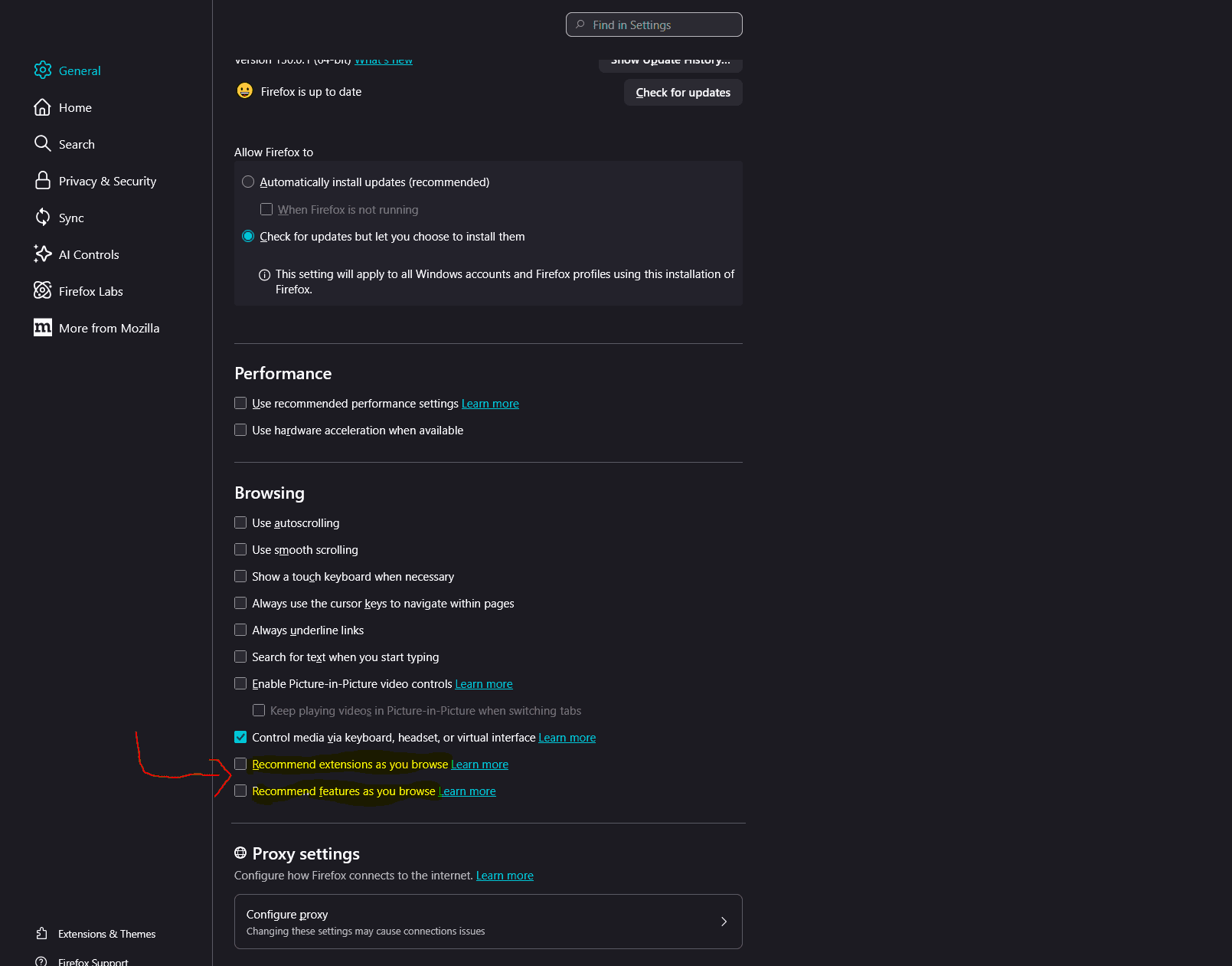
- Un-check “Recommend extensions as you browse”
- Un-check “Recommend features as you browse”
- Prevents certain internet usage data from being sent to Firefox
Under “Home”
View settings
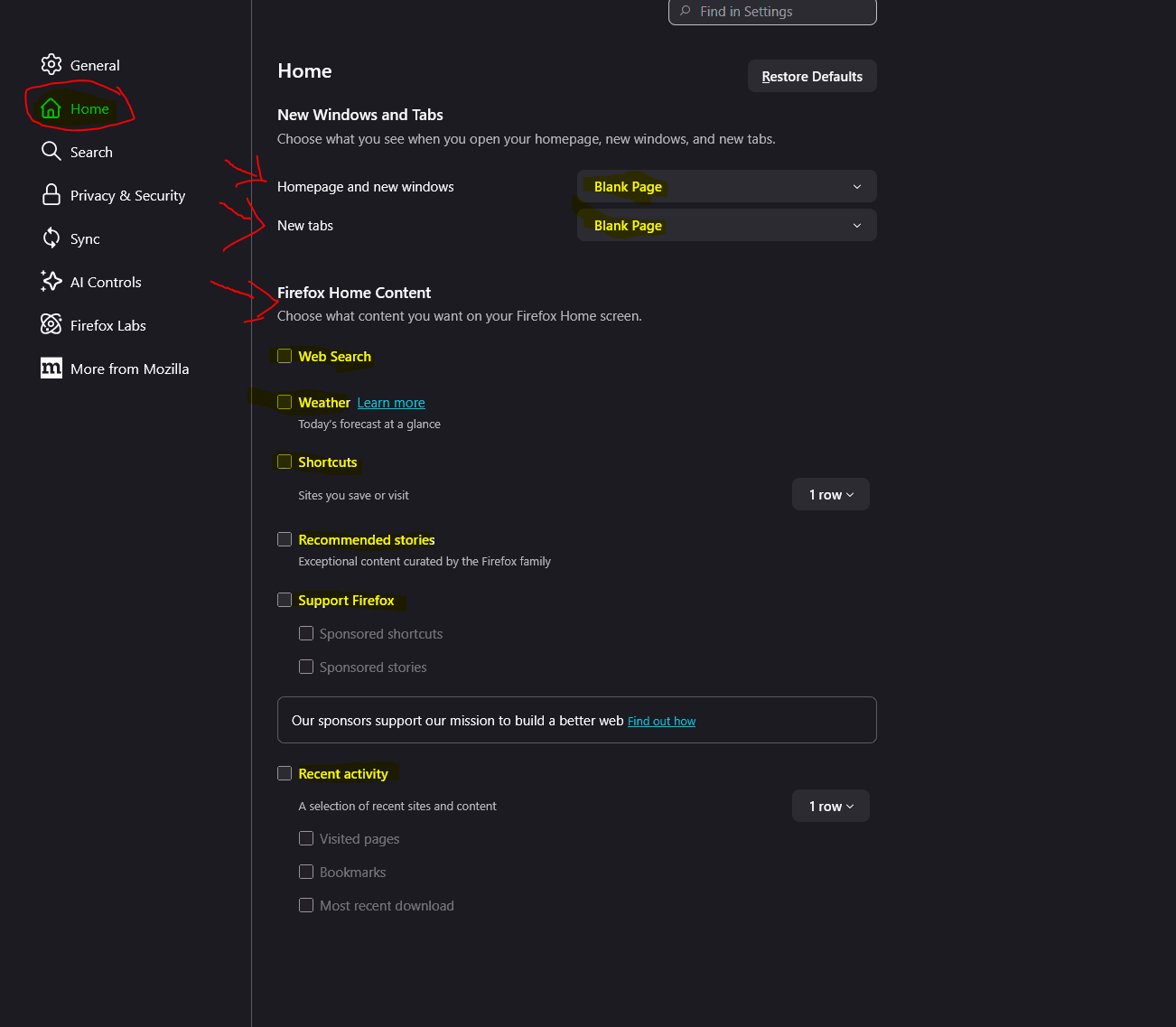
- Change “Homepage and new windows” & “New Tabs” to “Blank Page”
- This prevents Firefox from loading their default page
- Disable all “Firefox Home Content”
Under “Search”
View settings
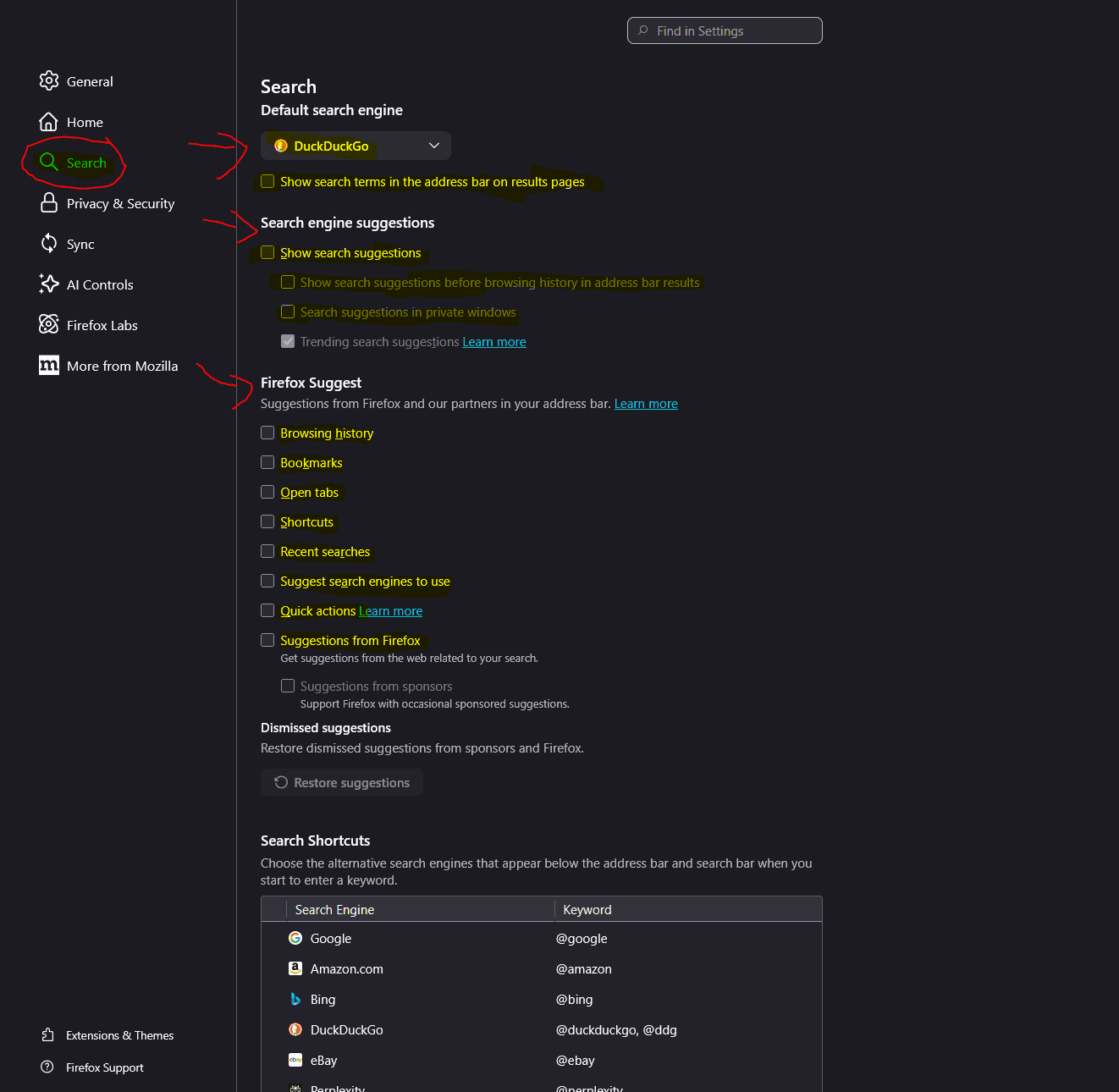
- Change default search engine to “DuckDuckGo” and un-check all options under “Provide search suggestions”
- This prevents searches from going directly to Google and blocks the Google API from offering search suggestions (Bazzell 136)
- Un-check “show search terms in address bar of results page”
Under “Privacy and Security”
View settings
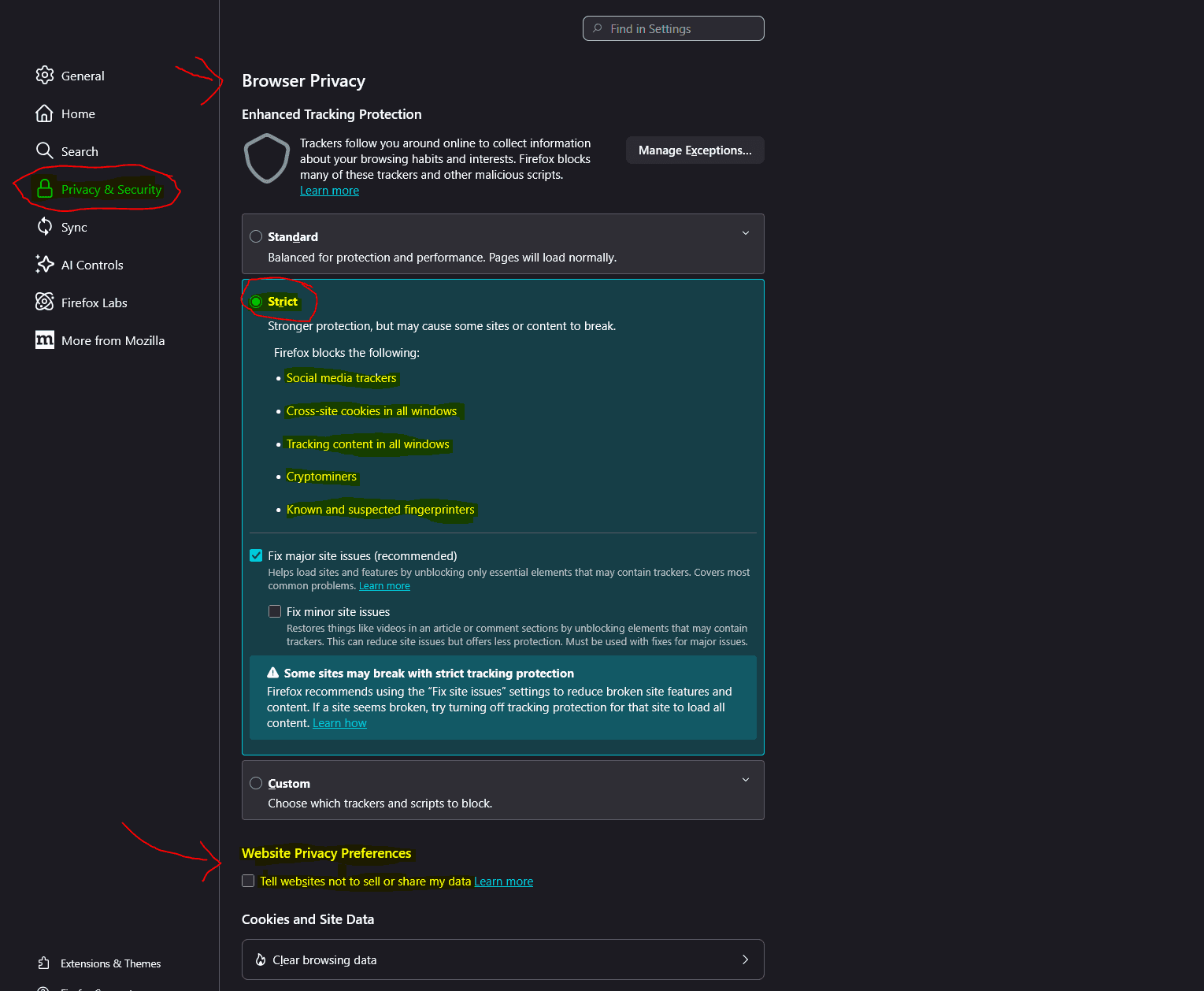
Enhanced Tracking Protection
- Select “Strict” protection
- Check “Tell websites not to sell or share my data”
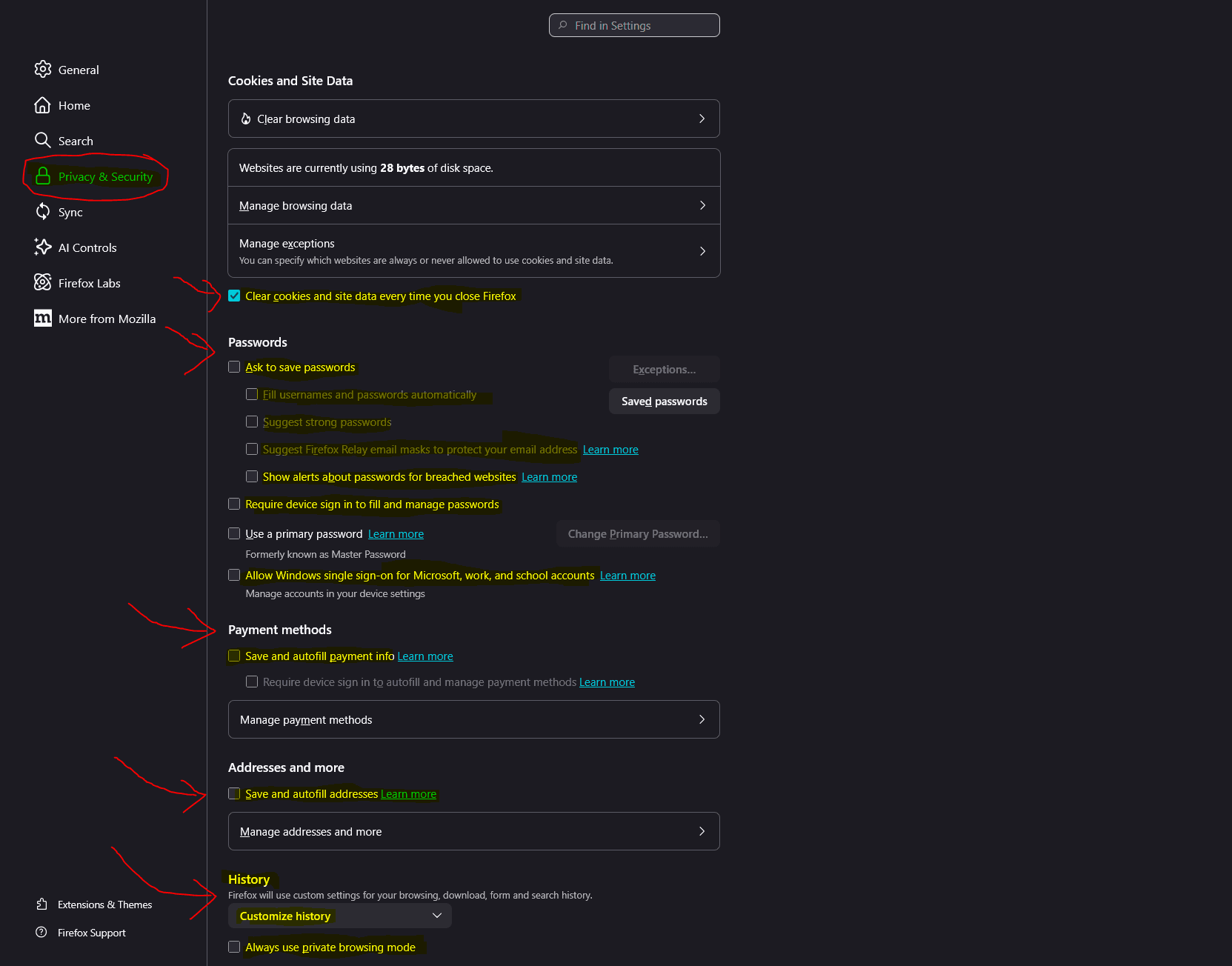
Cookies and Site Data
- Check “Delete cookies and site data when Firefox is closed”
Passwords
- Un-check “Show alerts about passwords for breached websites”
- Un-check “Suggest Firefox Relay...”
- Un-check “Suggest strong passwords”
- Un-check “Fill usernames and passwords”
- Un-check “Ask to save passwords”
- Un-check “Save and fill addresses”
- Un-check “Save and fill payment methods”
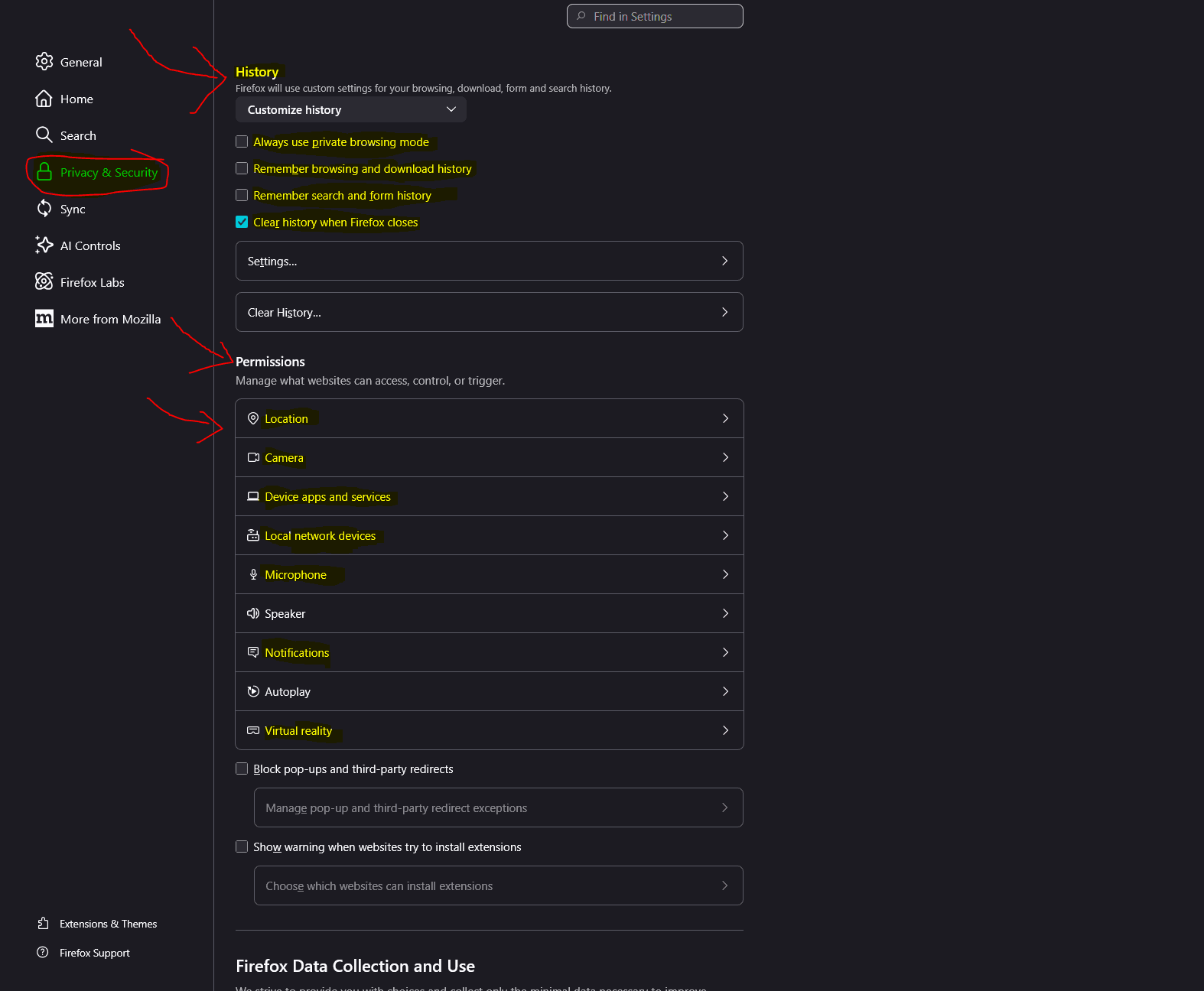
History
- Change the History setting to “Firefox will use custom settings for history”
- Un-check “Remember browsing and download history”
- Un-check “Remember search and form history”
- Check “Clear history when Firefox closes”
- Un-check “Always use private browsing mode” (Breaks Firefox containers — covered later on)
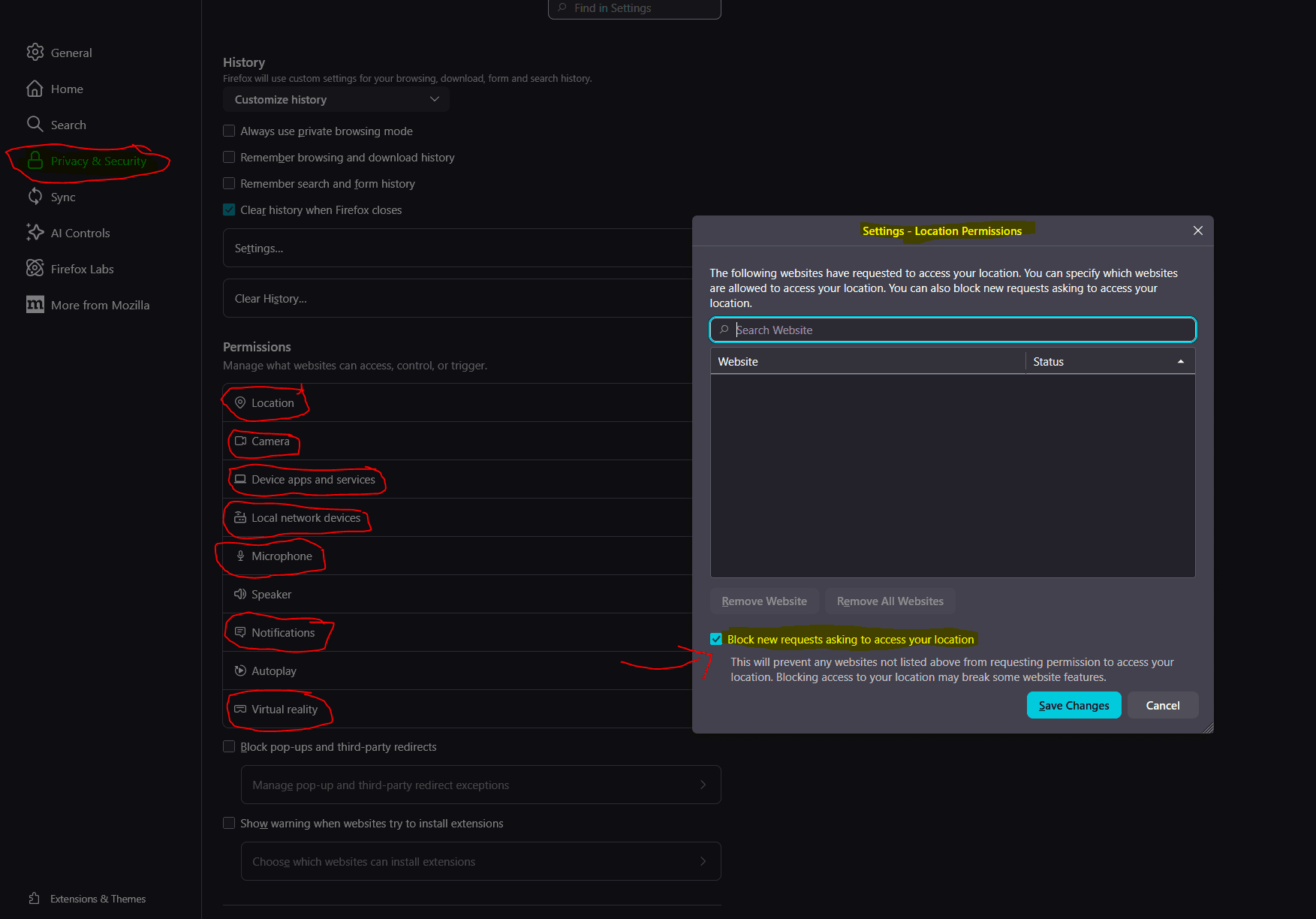
Permissions
- Within Permissions menu check box titled “Block new Requests...” for each of the following:
- Location
- Camera
- Device Apps and Services
- Local Network Devices
- Microphone
- Notifications
- Virtual Reality
- Some of these options may vary based on operating system. If you need to use microphone & camera for teleconferencing purposes you can toggle turn on permissions for the necessary time-frame
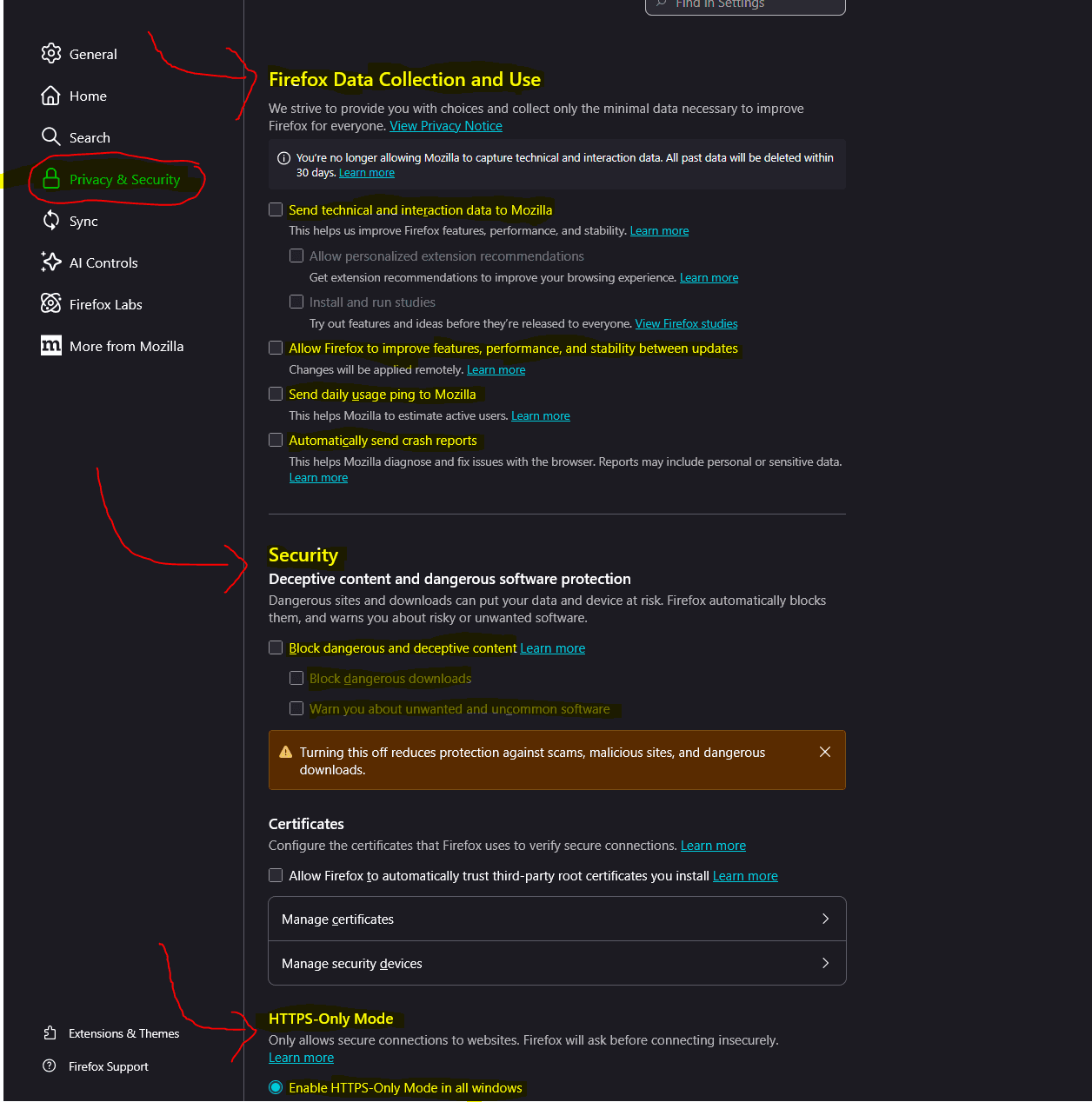
Firefox Data Collection and Use
- Un-check all options under “Firefox Data Collection and Use”
- Un-check all options under “Website Advertising Preferences”
Deceptive Content & Dangerous Software Protection
- Un-Check all options under “Deceptive Content & Dangerous Software Protection”
- This prevents FireFox from sharing potential malicious site visits with third-party services (Bazzell 136)
HTTPS-Only Mode
- Check “Enable HTTPS-Only Mode in all Windows”
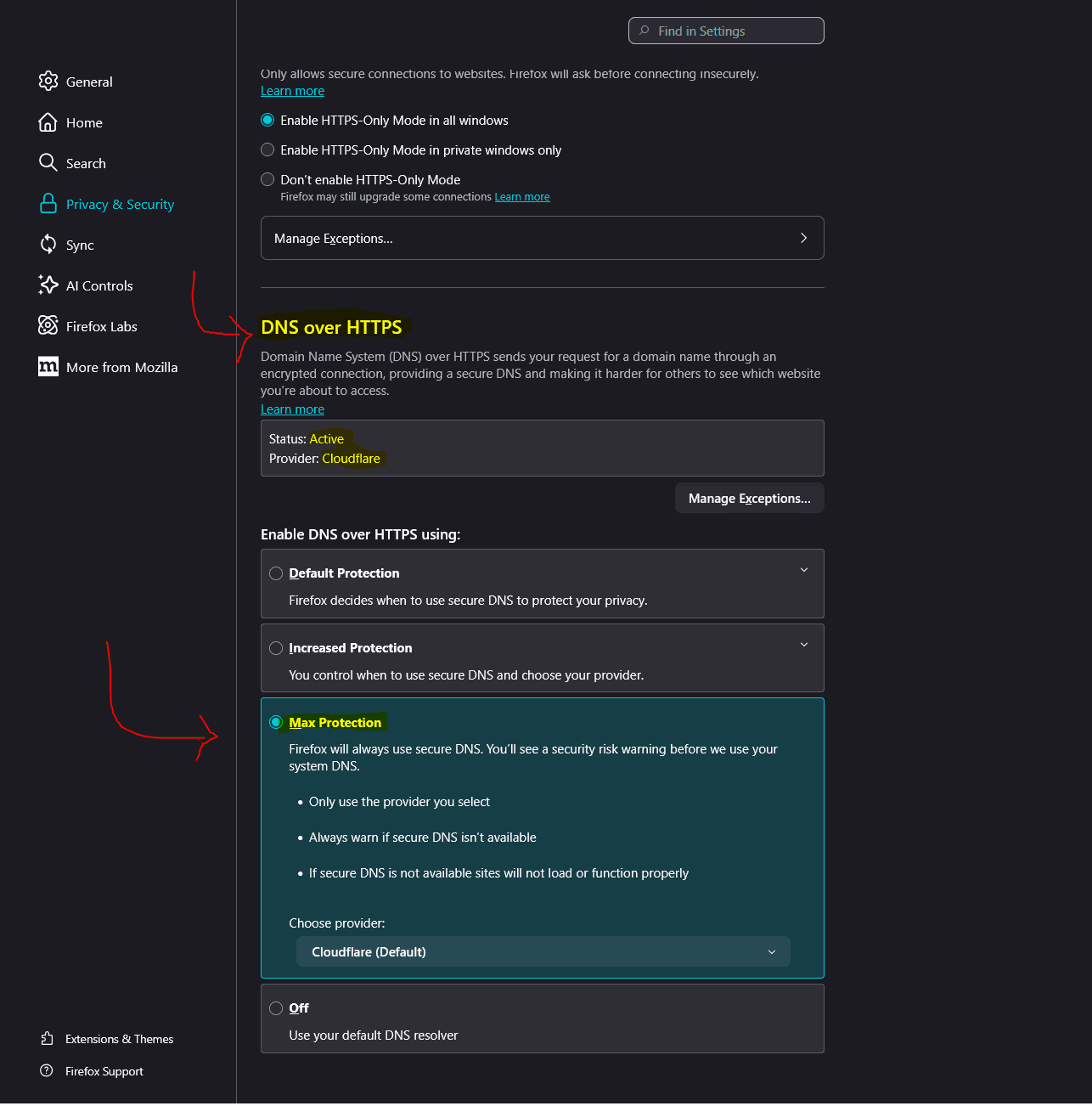
DNS over HTTPS
- Use Max protection utilizing Cloudflare as the DNS Resolver
- Sends your request for a domain name through encrypted connection
Under “AI Controls”
View settings
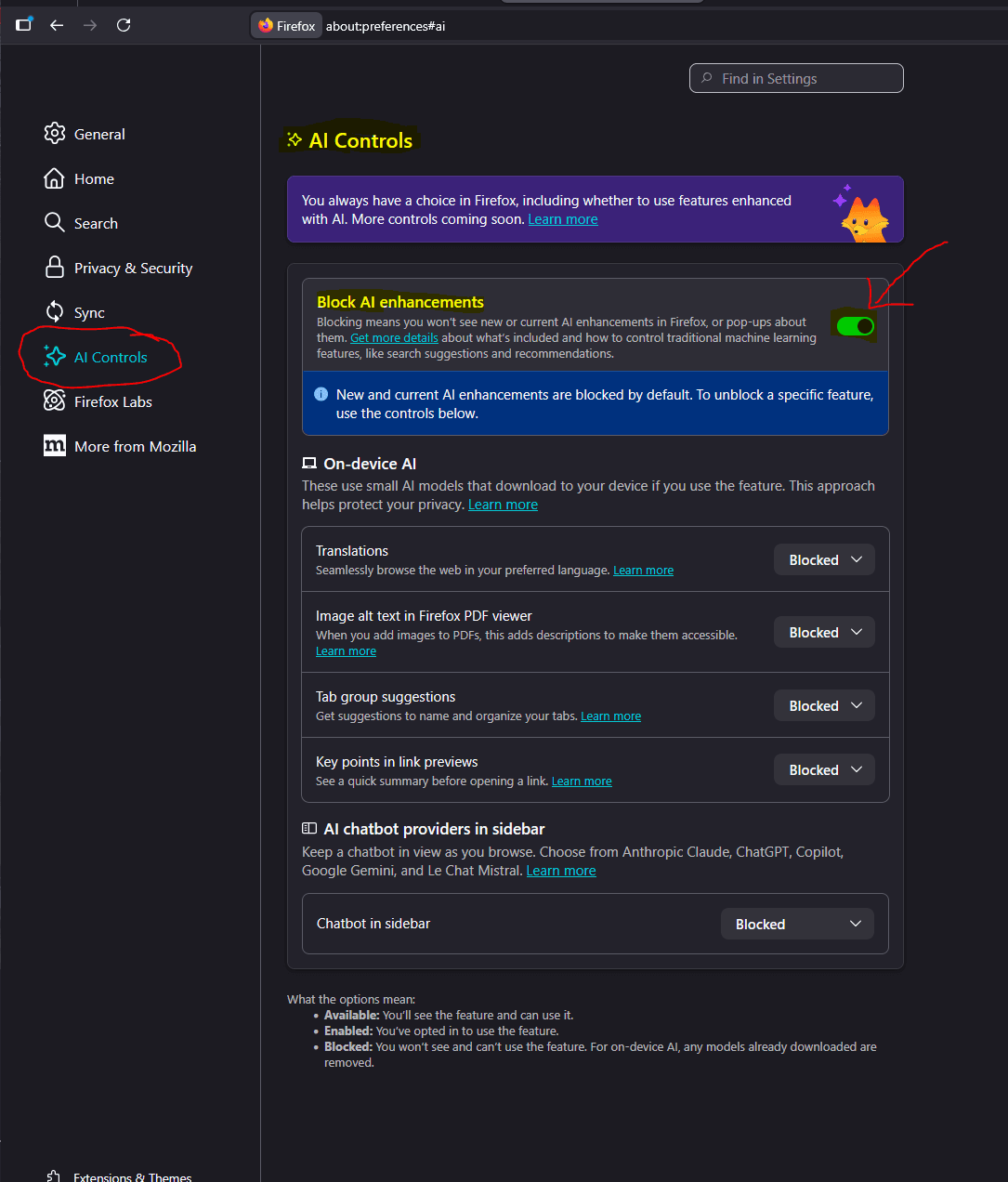
- To maximize privacy we recommend you toggle “Block AI Enhancements”, if you wish to utilize AIs/LLMs and maintain privacy you can host an offline LLM
Web Browsers: Search Engines
We generally recommend that you use DuckDuckGo as a privacy-centric search engine, as they have a superior privacy policy compared to Google.
Web Browser Add-ons: uBlock Origin
While there are numerous different extensions and software that exist to prevent trackers and ads, uBlock Origin allows users to exercise the most granular control and has extensive coverage. Once you enable the “I am an advanced user” box (discussed below) you will have the ability to tweak blocking settings via the dashboard.
For brevity's sake we will not delve into a full explanation of the panel, but recommend you take a look at this link for an easy visual guide to uBlock's panel under “Setting Up Advanced Options” section.
uBlock Origin Installation and configuration
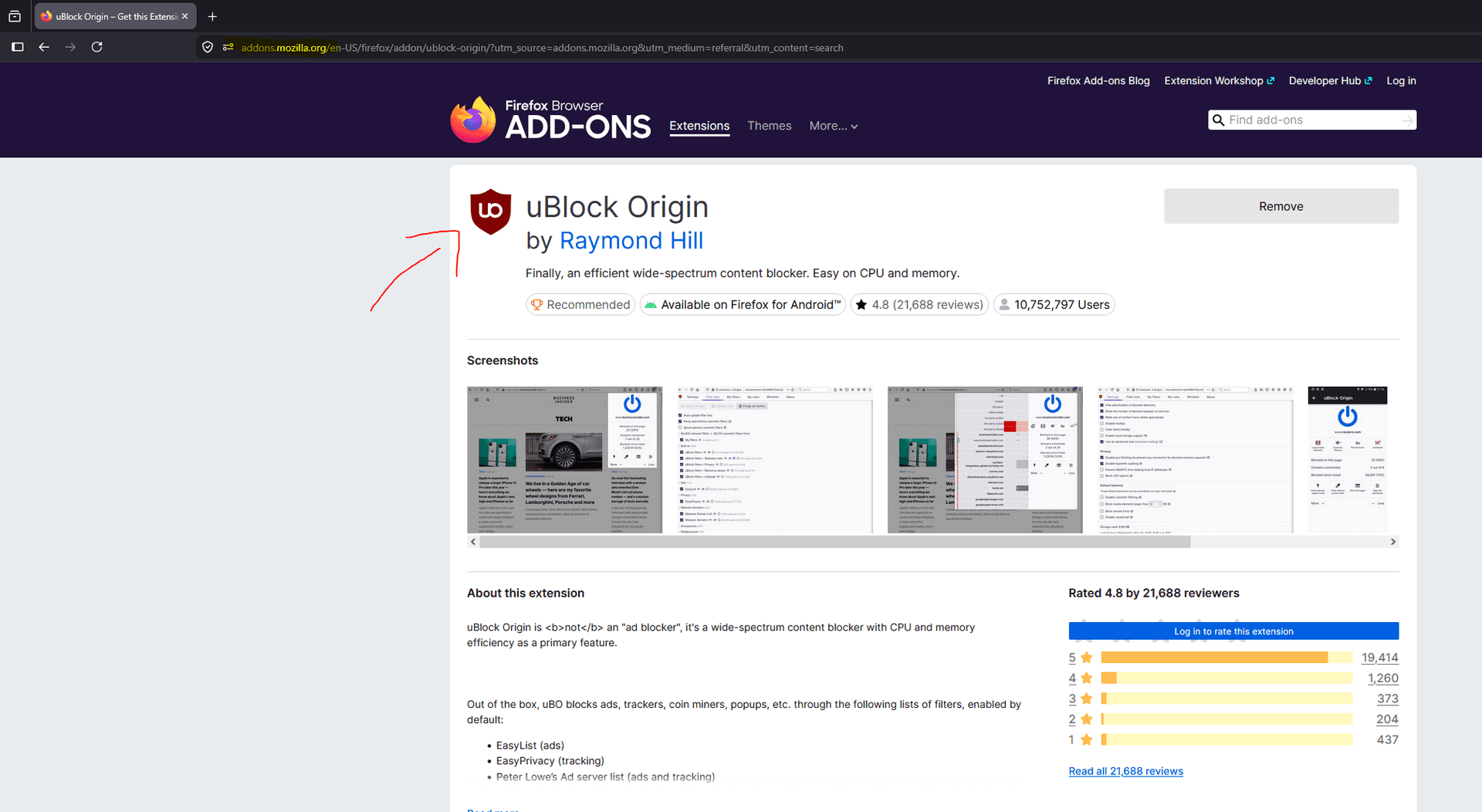
Installation
- Visit the uBlock Origin website or visit Firefox Add-ons page to download the uBlock extension for Firefox
- Click “Add to Firefox” → confirm with “add”→ Allow extension to run in private mode and select “okay”
- Most known invasive trackers are blocked with this addition

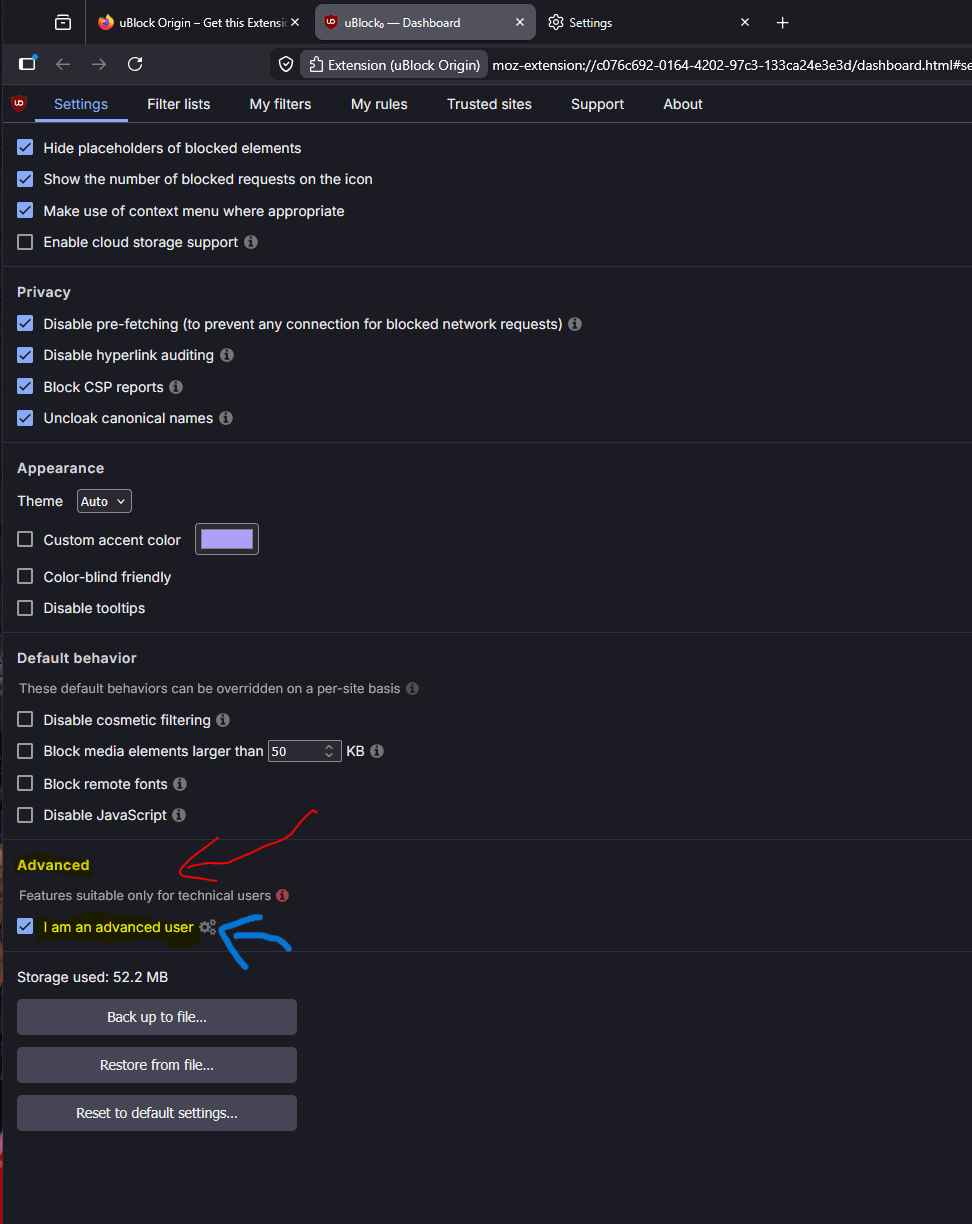
Dashboard Configuration
- Select the uBlock Origin icon in the menu and select the “Dashboard”
- Select Settings and click the “I am an advanced user”
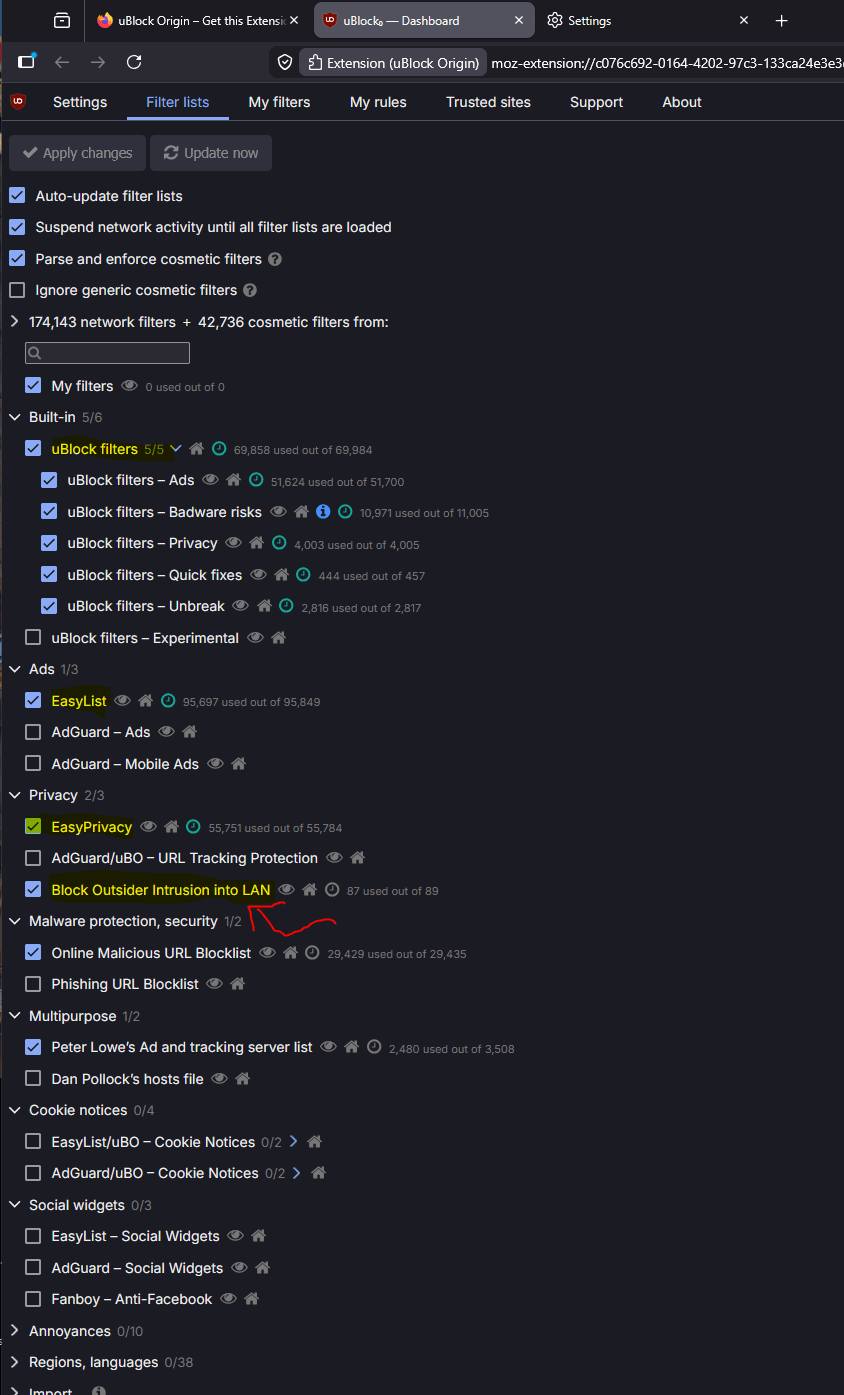
- Check the “Block Outsider Intrusion into LAN” box
- Check the “EasyList-Annoyances” box
Web Browser Add-Ons: Multi-Account Containers
Firefox's Multi-Account Containers are a simple way to keep your cookies contained to a specific grouping of tabs (e.g. Social Media, Banking, Online Shopping, etc.), limiting the amount of data that can be gathered about your online activity, associated accounts, shopping habits, search queries, etc.
Multi-Account Container Installation and setup
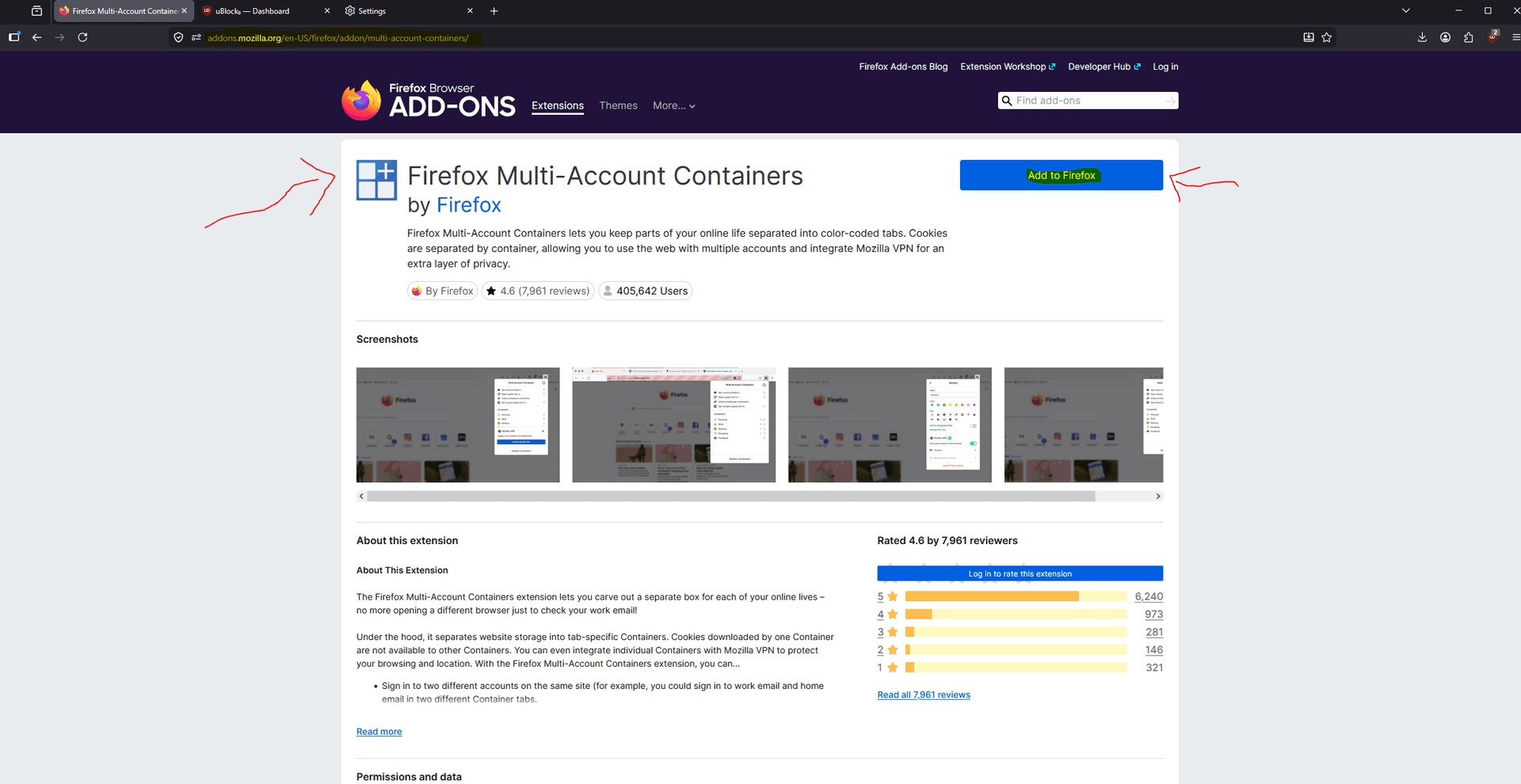
- Navigate to the Multi-Account Containers page on Firefox Add-Ons
- Select the “Add to Firefox” blue button on the top right
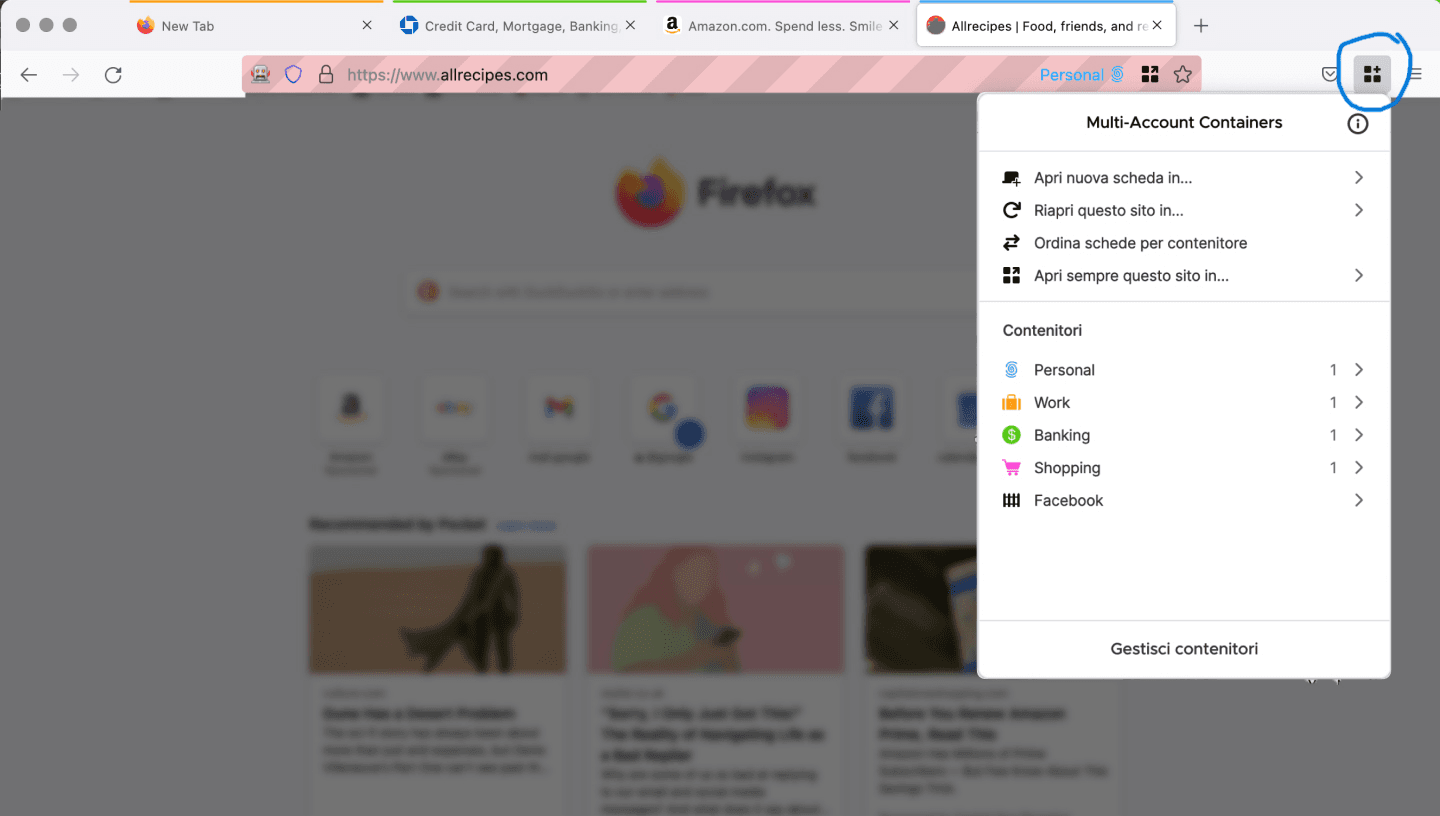
- By navigating to the Icon with three cubes and a “+” sign, you can now begin to customize the containers to fit your specific needs
Section 9: Secure Online Purchasing
Purchasing and ordering goods is a privacy minefield, numerous companies and organizations strive to collect as much data as possible to optimize selling services to a given user. But even outside the data collected, the purchases you make can be used to build a narrative about your intentions; regardless of the material truth behind your purchases.
Even when goods and services are ostensibly provided with a focus on your privacy, any provider is still beholden to financial and Anti-Money Laundering (AML) laws. This means that companies that offer privacy-centric services are also required to keep/retain information about the user's initial purchase (e.g. banking info, card information, billing address). Take for example, Proton Mail handing over payment data regarding a protestor involved with ‘Stop Cop City’ protests in Atlanta. At the end of the day, your payment method determines what level of anonymity you are actually able to achieve.
Privacy-Centric Payment Methods
Cash
- Cash is king — easily the most anonymous manner of completing purchases
- Note that while the purchase may be private, the state can use periphery information to identify you. For example, if you make a purchase with cash, but your personal vehicle is captured on the store's CCTV system, you can be identified through LPR data.
Prepaid Cards
- Non-reloadable cards should only be used for in-store purchases and should be avoided for online purchases
Masked Cards
- These are companies that allow you to “generate unlimited unique debit and credit card numbers”. The primary purpose of this is to obfuscate the vendor from seeing the purchasers information.
- Note that if a warrant is issued to a privacy centric service and you use a masked card the state will issue a warrant to the masked card provider to obtain your information.
Virtual Currencies
- The cleanest way to make an anonymous purchase is to use virtual currencies. If properly obtained and spent, there is almost no way to be identified. While this is the only true manner of anonymous purchasing online, virtual currencies are not universally accepted.
Most critical: Always have numerous private options for payments available at any time.
Prepaid Purchase Cards
- Prepaid cards are a decent choice for making private purchases. If you’re purchasing a non-reloadable prepaid card with cash the exposure you face is limited to the cameras in and around the store you purchased the card from.
- Typically reloadable prepaid cards require users to provide identifying information upon activation, which ties all purchases back to you directly.
- Research which prepaid card providers require you to provide identifying information in order to activate them.
Masked Cards
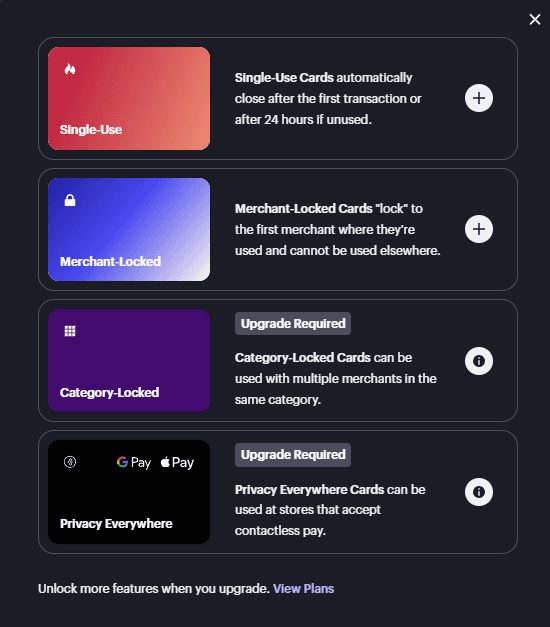
- Masked cards can be a useful tool for protecting your privacy, but they should not be relied on as the sole method of anonymous purchasing. Always have multiple options available and consider the potential risks before making a purchase.
- Some cards can be tailored to only accept charges from a specific vendor. These masked cards can be customized in terms of adding limits to how much money can be used via the card on a monthly or annual basis.
Note: While Masked Cards create a layer of privacy between yourself and the vendor, there is still a clear auditable link between you and the purchase.
Privacy.com is a “Masked Card” service provider as mentioned above, that allows users to generate one-time use or vendor specific debit cards. When you make a transaction using one of these Masked Cards, the transaction will show up on your bank statement as “Privacy.com” (If you select ‘hide merchant’). This prevents the user from having personally identifying information exposed unnecessarily to a vendor. This offers some practical privacy for transactions where you would not want your data to be stored by an insecure third-party.
If you choose to use Privacy.com or another masked payment provider:
- Never associate your true home address with the billing details
- Always use an apartment address in another state as the billing address
- Never fund a NEW online shopping account with a Privacy.com card.
- Attach Privacy.com cards to established online accounts with purchase history
- Delete cards which will no longer be used
- Pause cards which are not currently being used
- Activate “Private Payments” within the service (Not on by default)
Virtual Currencies
For truly anonymized purchasing on online platforms, utilize virtual currencies. This topic exceeds the current scope of this toolkit.
Source: Proton Mail handing over payment data (Stop Cop City case)
Source: Privacy Rights — Prepaid Cards and Your Privacy
Bazzell, Michael. Extreme Privacy: What It Takes to Disappear. 5th ed., Intel Techniques, 2024.
Section 10: Physical Security
Deciding whether to bring a phone at all
- A phone you leave at home cannot be used to track you.
- If you need communication at a protest, bring only a dedicated protest device — not your daily phone.
Maintain a Secure Device
- Keep a secure device with GrapheneOS configured and up-to-date for protest actions. See our detailed guide on how to set up Secure Mobile Devices.
Faraday bags
- A pouch that blocks all radio signals — cellular, Wi-Fi, Bluetooth, GPS. Recommended retailers: Mission Darkness, GoDark
- When your device is in the bag, it's completely dark.
- Useful for transit to/from actions, or when you need the device nearby but not emitting.
Biometrics vs. passcode
- In many jurisdictions, law enforcement can physically compel a fingerprint or face unlock but cannot compel a passcode. This legal distinction varies but the principle holds broadly.
Action: Disable all biometric unlock before any situation where seizure is possible.
If your device is seized
- Power it off immediately if you can — a powered-off encrypted device is orders of magnitude harder to access than a powered-on one.
- Do not unlock it voluntarily — assert whatever legal rights exist in your context.
- Assume anything on the device is now accessible if it was powered on when taken.
- A device that is returned after being out of your custody should be treated as compromised — it may contain malicious software. Do not use it for sensitive communications again.
Dress and physical countermeasures
- Masks, hats with brims, nondescript clothing, avoiding distinctive accessories.
- Facial recognition cameras are a primary identification tool.
- Unique tattoos, shoes, and bags can also be used for identification even when faces are covered.
Camera and recording considerations
- Documenting abuses is important, but every photo and video contains metadata and potentially identifies other participants.
- Strip metadata before sharing.
- Be aware that filming others at a protest without their consent can endanger them.
Emergency contacts and check-in protocols
- Establish a trusted person who is NOT at the action and who expects a check-in from you at a specific time.
- If the check-in doesn't come, they follow a pre-agreed protocol (alerting a lawyer, an organization, etc.).
Section 11: Vehicles & License Plate Readers
When taking political action in an increasingly suppressive environment, it is imperative to consider how routines/practices we take for granted can be exploited. Your vehicle and discernible travel patterns can be used to determine your home, your place of work, list of contacts, etc. Deviations from normal patterns, however innocent, can be autonomously flagged and serve as the pretext for you to get pulled over.
While the mitigation strategies for extensive surveillance of your vehicle are limited due to applicable laws; understanding the methodologies, technologies, and networks leveraged by state adversaries will allow you to proactively take measures to avoid them in the first place. Whether that is taking public transit, car pooling, walking, etc. it provides you a practical path for engaging in political activity and maximizing your right to privacy.
License Plate Readers (LPRs)
In 2017, the Department of Homeland Security released a Privacy Impact Assessment (PIA) regarding their intention to access commercially available LPR data from an anonymous vendor. A follow up PIA from May 21st, 2021 (Ref No. DHS/ICE/PIA-039(b)) highlights the ways in which DHS has utilized commercial LPR data and improvements made to the technology since.
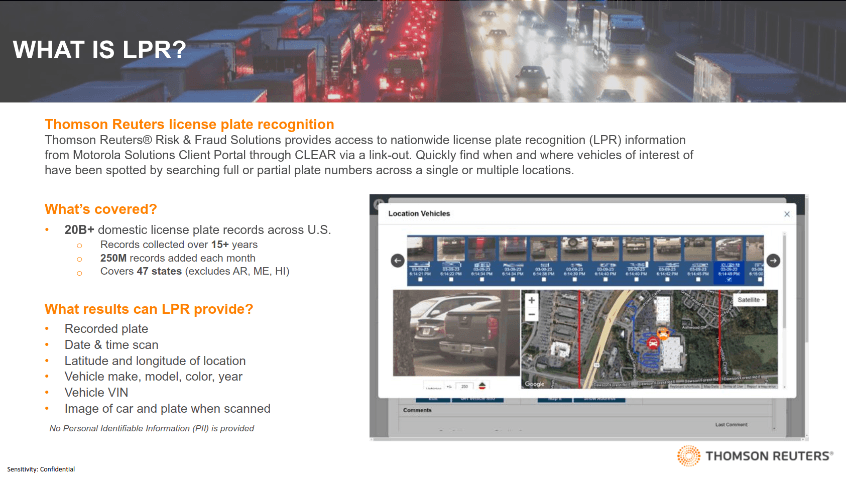
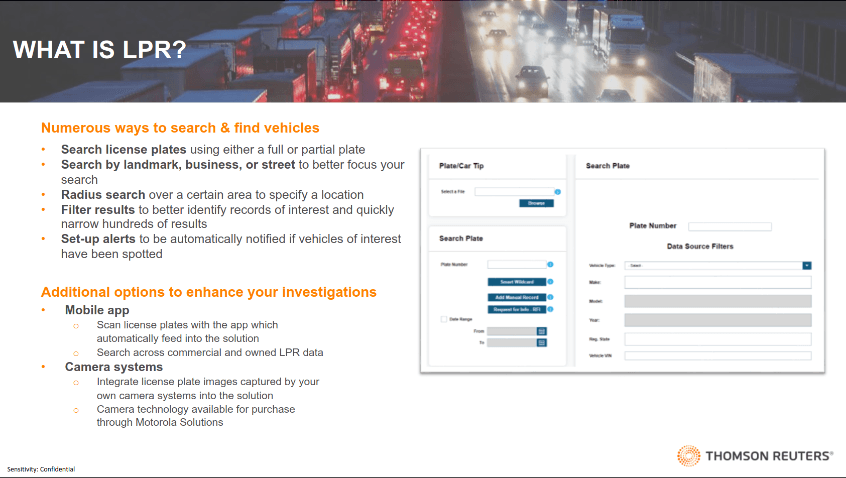
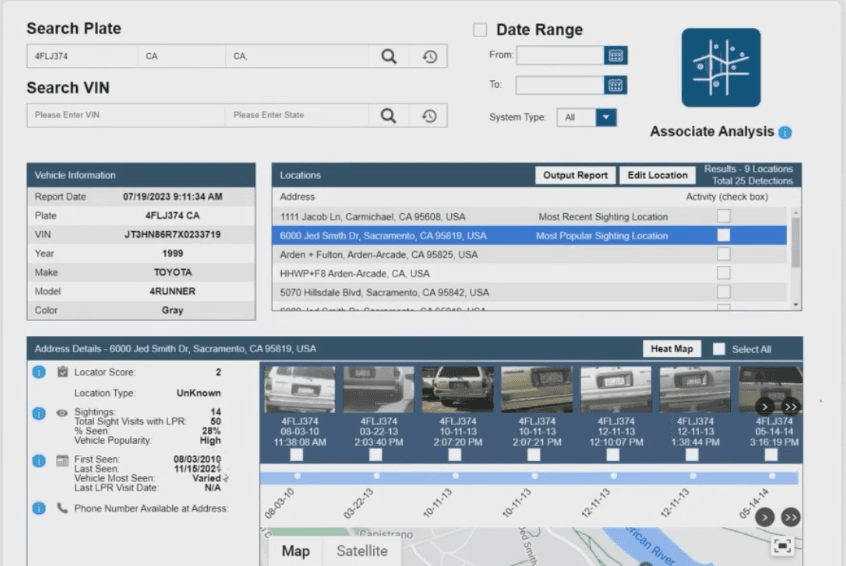
Geographic Queries: Commercial vendor’s program that ICE utilizes for vehicle tracking allows DHS officials to use multiple geographic points “..to draw polygonal shapes to define a region of interest”. They can query all vehicles within this specified geographic location, this method is especially effective when they have other vehicle knowledge (make, model, color, partial license plate, etc.).
Partial Plate Queries: Utilizing their commercial partner’s platform DHS is able to query license plates through a partial plate request. The partial plate query is often combined with the Geographic queries and make & model information for the most effective investigative results.
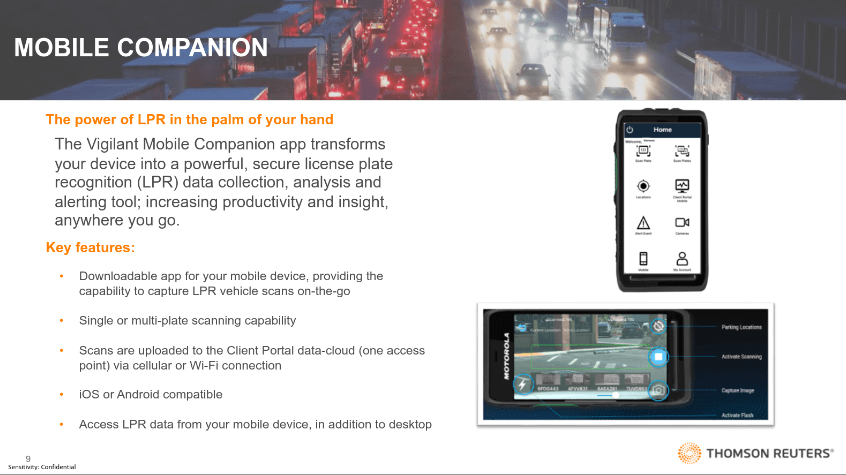
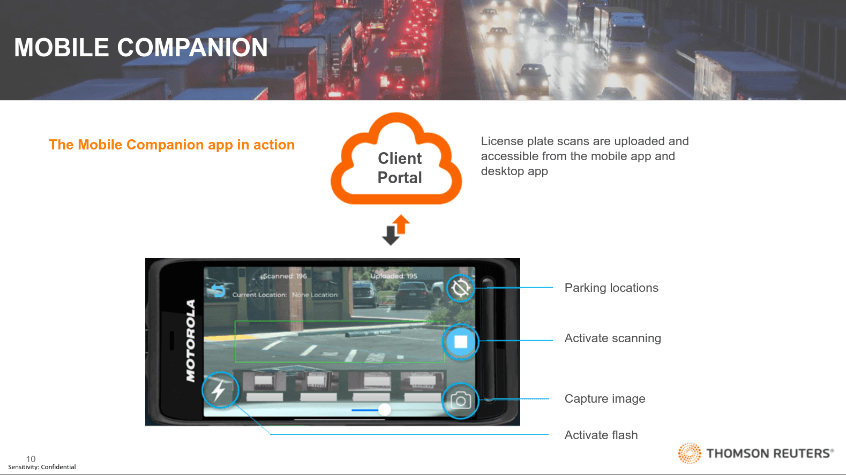
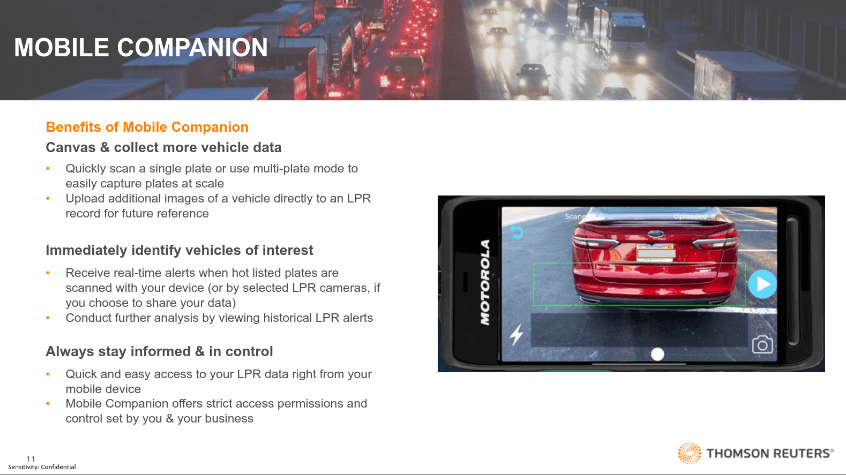
Mobile Application Scanning: DHS has also retained a mobile application with a plate scan feature that “uses a phone’s camera to scan license plates in a continuous automated manner...inside or outside their patrol cars”. The data is stored on both the ICE Agent’s mobile device & uploaded to DHS’ commercial partner’s cloud server
Flock Cameras: DHS is also utilizing Flock Safety’s network of 40,000 Automatic License Plate Reader (ALPR) cameras across the United States. A Orlando Sentinel investigation found that between March 13th & May 5th, Florida state troopers conducted more than 260 immigration related searches using Flock’s ALPR system. This combined with the deputizing of state law enforcement officials under program 287(g) has allowed ICE to decentralize immigration enforcement to local authorities; who rely more on ALPR systems to conduct immigration related investigations & arrests.
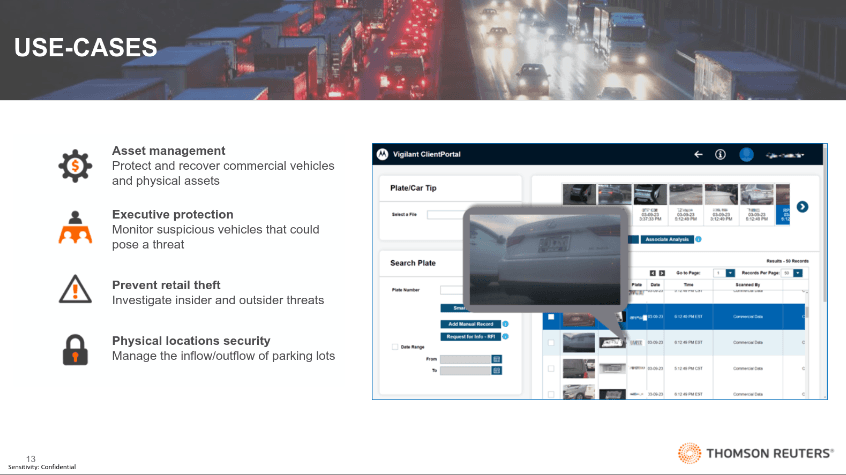
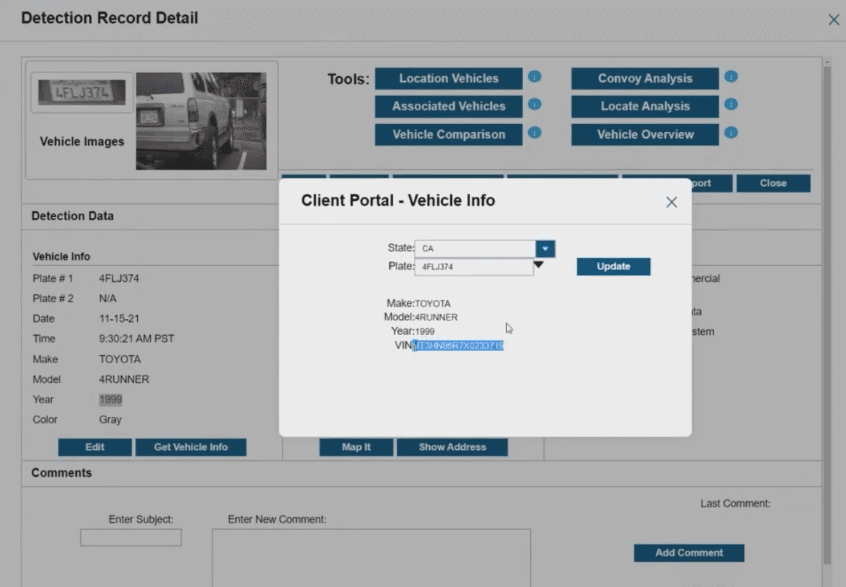
The slides below provide an overview of Thomson Reuters’ Commercial LPR program in their own words (Note that law enforcement has enhanced capabilities & access as highlighted in the previous sections):
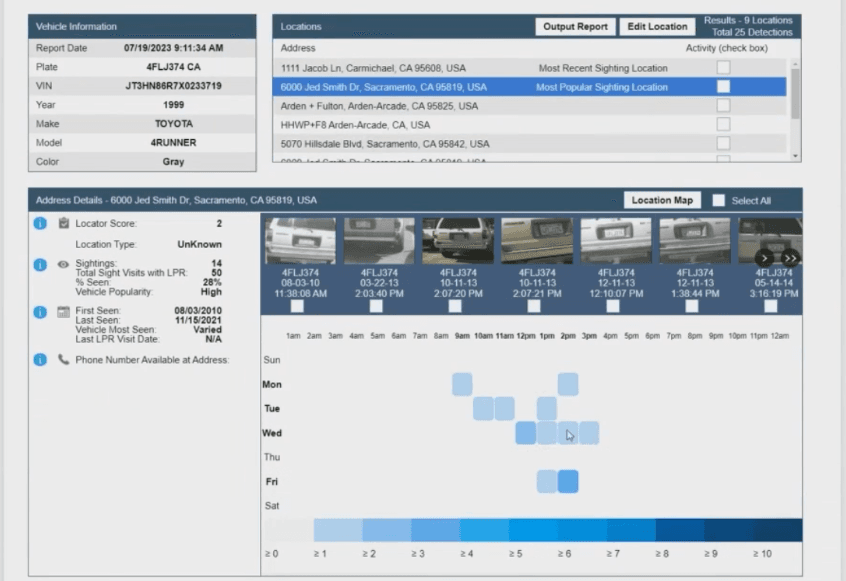
Source: This App Lets ICE Track Vehicles and Owners Across the Country (404Media 11.17.2025) — Paywall Free: archive.ph/HaQu0
Source: ICE Is Searching a Massive Insurance and Medical Bill Database to Find Deportation Targets (404Media 07.09.2025)
Source: ICE to Buy Tool that Tracks Locations of Hundreds of Millions of Phones Every Day (404Media 09.30.2025)
Source: ICE Plans Central Database of Health, Labor, Housing Agency Data to Find Targets (404Media 04.10.2025)
Source: Mass Surveillance is Powering a New Era of Pretextual Traffic Stops (Reason 11.24.2025)
Source: Motorola Solutions Acquires VaaS International Holdings, Leader in Data and Image Analytics for Vehicle Location (Motorola Solutions 01.7.2019)
Source: Border Patrol is Monitoring US Drivers and Detaining those with ‘suspicious’ travel patterns (AP 11.20.2025)
Source: DHS Privacy Impact Assessment for the CBP License Plate Reader Technology (DHS 07.06.2020 — Ref No. DHS/CBP/PIA-049(a))
Source: Homeland Security Grants Office: Operation Stonegarden (OPSG) Program
Source: Florida Used a Nationwide Surveillance Camera Network 250 Times To Aid in Immigration Arrests (Reason 06.19.2025)
Source: See which Pa. Law Enforcement Agencies are working with ICE (PennLive 02.10.2026)
Source: ICE Acquires License Plate Tracking Data Through Sole Source Contract (Homeland Security Today 01.29.2018)
Section 12: Secure Group Coordination
Compartmentalization
- Not everyone needs to know everything. Organize communications into cells — logistics, media, legal support — with limited crossover.
- If one channel is compromised, the damage is contained.
Invite link hygiene
- Group invite links should be one-time use when possible, and rotated regularly.
- A leaked invite link can allow an infiltrator into the group silently.
Vetting new members
- In-person verification is the gold standard.
- A contact vouched for by one existing member is better than an unknown contact, but a contact verified in person by multiple members is best.
Disappearing messages as default
- Enable disappearing messages (Signal) or auto-delete (Briar) on all group channels.
- Decide on a retention period appropriate to the risk — 24 hours for operational coordination, 1 week for general discussion.
Role separation
- Designate roles within the group — who manages the channel, who can add members, who holds operational details.
- Limit admin access to the minimum number of people needed.
Backup coordination channels
- If your primary channel is compromised or goes down, what's the fallback?
- Pre-agree on a secondary channel and ensure everyone has it set up before it's needed.
Avoiding single points of failure
- If one person holds all credentials, all contacts, or all organizational knowledge, their detention cripples the entire operation.
- Distribute critical information across multiple trusted people.
Section 13: Dealing with Disinformation and Infiltration
Verify identities
Signal's safety number verification allows you to confirm in person that you're communicating with the right person. Do this for critical contacts.
How: In a Signal conversation, tap the contact name → View Safety Number → compare the number or scan the QR code with the other person's phone in person. More info here.
Recognize social engineering
- Infiltrators and provocateurs often build trust by being extremely helpful, volunteering for sensitive tasks, or pushing the group toward more extreme actions.
- Be cautious of anyone who escalates faster than the group or who pushes for information beyond what they need for their role.
Handle suspected compromise
- If you suspect a channel has been compromised, do not discuss the suspicion on the compromised channel.
- Establish a new channel with verified members only.
- Treat the old channel as hostile — assume anything said on it is being monitored.
Verify information before acting on it
- False information — protest locations, legal advice, claims about arrests — can be planted to disrupt, redirect, or entrap.
- Verify through multiple independent sources before acting on any critical information.
Screenshots can be fabricated
- A screenshot of a conversation is trivially easy to forge.
- Treat screenshots as claims, not evidence, unless independently verified.
Section 14: Backups and Preserving Critical Data
The paradox of data security for civil resistance
You need to minimize data that could be used against you while preserving evidence that documents abuses. These are opposing requirements that need to be managed intentionally.
What to preserve
- Photos and video of abuses (with metadata stripped of your identifying information but preserving time/location of the event)
- Legal documentation
- Organizational continuity information (contact trees, protocols)
How to preserve it
- Encrypted USB drives stored with multiple trusted people in different locations
- VeraCrypt containers (encrypted file containers with strong passphrases)
- ProtonDrive or Tresorit for encrypted cloud storage outside your jurisdiction
Never store critical evidence in a single location or with a single person.
SecureDrop for getting evidence to journalists
When evidence needs to reach journalists or international observers safely, SecureDrop (accessed via Tor) is the purpose-built tool. Major news organizations maintain SecureDrop instances. Submissions are anonymous and encrypted.
Dead drops
Pre-arranged methods for passing information if direct communication is compromised — a specific location, a public-facing but innocuous signal, or an encrypted file left at a pre-agreed online location.
Section 15: Daily Habits vs. Action-Specific Protocols
Everyday baseline practices (low friction — do these always)
- Use a password manager with unique passwords for every account
- Use Signal for personal messaging instead of SMS or WhatsApp
- Enable 2FA (authenticator app, not SMS) on all important accounts
- Keep devices and apps updated — security patches close known vulnerabilities
- Strip metadata from photos before sharing
- Use Firefox with uBlock Origin as your default browser
- Be deliberate about what you post on social media
Pre-action preparation (before a protest or sensitive activity)
- Charge and prepare your protest device
- Ensure contacts are added on Briar/Signal on the dedicated device
- Set up disappearing messages on all relevant channels
- Review and agree on group coordination protocols and fallback channels
- Confirm emergency contacts and check-in schedule
- Remove biometric unlock from devices
- Carry a Faraday bag
During an action
- Use only the dedicated protest device
- Keep daily phone at home or powered off in a Faraday bag
- Minimize digital communication — use pre-agreed plans rather than real-time coordination when possible
- Strip metadata from any photos before sharing
- Be aware of cameras and facial recognition infrastructure
After an action
- Check in with your emergency contact
- Review what data exists from the action — delete what isn't needed, securely preserve what is
- Debrief with your group on what worked and what didn't — including digital security
Section 16: Resources and Next Steps
Guides and organizations
- EFF Surveillance Self-Defense — the Electronic Frontier Foundation's comprehensive guide, regularly updated, with scenario-specific advice for activists, journalists, and others
- Security in a Box — practical digital security tools and tactics, maintained by Frontline Defenders and Tactical Tech
- Access Now Digital Security Helpline — free, direct support for civil society, activists, and journalists facing digital threats
- Freedom of the Press Foundation — digital security resources and training for journalists and sources
Tools referenced in this guide
| Tool | Purpose |
|---|---|
| Signal | Encrypted messaging |
| Molly | Security-enhanced fork of Signal |
| Briar | Offline-capable encrypted messaging |
| SimpleX Chat | Anonymous messaging (no account required) |
| Session | Decentralized messaging (no phone number) |
| ProtonMail | Encrypted email |
| Tor Browser | Anonymous web browsing |
| Tails OS | Amnesic live operating system |
| GrapheneOS | Hardened Android OS |
| KeePassXC | Offline password manager |
| Bitwarden | Cloud-synced password manager |
| Aegis | 2FA authenticator (Android) |
| uBlock Origin | Browser content/ad blocker |
| Firefox | Privacy-respecting browser |
| Mullvad VPN | No-identity VPN service |
| ProtonVPN | Encrypted VPN |
| VeraCrypt | Disk/file encryption |
| SecureDrop | Anonymous journalist submissions |
| SimpleLogin | Email aliasing |
| YubiKey | Hardware 2FA security key |
| Nitrokey | Open-source hardware security key |